LM Studio has rapidly become a popular local environment for running large language models (LLMs) without relying on cloud-based APIs. While it is best known for text generation and conversational AI, many users are now exploring how to use LM Studio to render images through multimodal models and integrations. With the right setup, LM Studio can serve as a powerful interface for generating AI-driven visuals directly from a desktop machine, giving users more control, privacy, and customization.
TLDR: LM Studio can render images by using multimodal models or by integrating with local image-generation backends such as Stable Diffusion. Users must install a compatible model, configure GPU or CPU resources, and input carefully crafted prompts. With proper optimization settings, LM Studio can generate high-quality visuals locally without relying on cloud services. This guide walks through setup, configuration, and best practices.
Understanding LM Studio and Image Rendering
LM Studio is primarily designed as a desktop application for running large language models locally. However, recent developments in AI models have introduced multimodal capabilities, enabling some models to handle both text and image generation. In addition, LM Studio can act as a bridge to backend image-generation tools that process prompts into graphics.
Rendering images in LM Studio typically happens in one of two ways:
- Using a multimodal model that supports direct image output.
- Connecting to a local image-generation engine, such as a Stable Diffusion backend.
This flexibility makes LM Studio appealing to digital artists, designers, developers, and researchers who want a centralized AI workspace.
System Requirements and Preparation
Before attempting to render images, users should confirm that their system meets certain requirements. Image generation can be significantly more demanding than text generation.
- GPU: A modern NVIDIA GPU with at least 6–8 GB of VRAM is recommended.
- RAM: 16 GB or more ensures smoother performance.
- Storage: Models can range from 4 GB to over 20 GB in size.
- Drivers: Updated GPU drivers and CUDA support (if applicable).
Although CPU-based rendering is possible, it is considerably slower. Users aiming for production-quality visuals should prioritize GPU acceleration.
Step 1: Installing LM Studio
To begin, download and install LM Studio from its official website. The installation process is straightforward and available for Windows, macOS, and Linux.
After launching the application, users are greeted with an interface that allows them to browse, download, and manage AI models.
Image not found in postmetaThe key sections include:
- Model Library – Browse and download supported models.
- Local Server – Manage runtime configurations.
- Chat Interface – Interact with loaded models.
Step 2: Selecting an Image-Capable Model
Not all models can generate images. Users must select models specifically designed for visual generation or multimodal interaction.
When browsing the model library:
- Filter for multimodal models.
- Check documentation for image output support.
- Confirm compatibility with available hardware.
Some setups involve downloading a text model for prompt refinement and pairing it with a specialized image-generation model running locally.
Step 3: Configuring the Local Runtime
Once the appropriate model is installed, users must configure runtime settings. This directly impacts rendering speed and output quality.
Key configuration parameters include:
- Context length
- GPU layers
- Batch size
- Memory allocation
Allocating more GPU layers typically improves performance but requires sufficient VRAM. LM Studio provides sliders and numerical fields that allow users to experiment safely.
Step 4: Writing Effective Prompts for Image Rendering
Prompt quality plays a critical role in image rendering. Vague inputs generate vague visuals. Detailed and structured prompts yield better results.
An effective prompt often includes:
- Subject: What is depicted?
- Style: Realistic, watercolor, cinematic, digital art?
- Lighting: Soft lighting, neon glow, golden hour.
- Camera angle: Close-up, wide shot, aerial view.
- Additional modifiers: High resolution, detailed texture, 8k.
Example prompt: “A futuristic city skyline at sunset, cinematic lighting, ultra detailed, reflective glass buildings, high resolution digital art.”
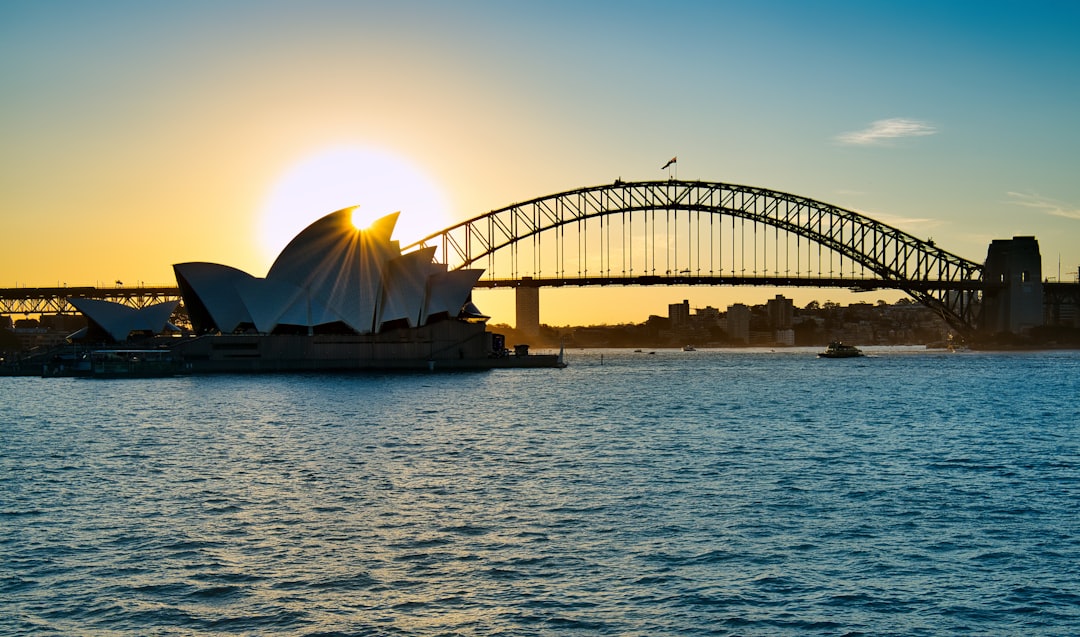
Users can refine prompts iteratively, adjusting descriptive elements until desired results are achieved.
Step 5: Rendering and Monitoring Progress
When the prompt is submitted, the model begins generating the image. Rendering time depends on:
- Resolution settings
- Sampling steps
- Hardware capabilities
During rendering, LM Studio may display logs or progress percentages. If rendering stalls, users should check system memory usage and GPU load.
Once completed, images can typically be saved directly to the local storage directory configured in the settings panel.
Optimizing Image Quality
High-quality image output depends on more than just descriptive prompts. Advanced settings allow users to control generation parameters:
- Sampling method – Determines randomness and coherence.
- CFG scale – Controls how closely the output matches the prompt.
- Steps – Higher steps often increase detail but slow rendering.
- Resolution – Larger images require more VRAM.
Increasing the CFG scale strengthens adherence to the prompt but may reduce artistic variation. Users should experiment to strike a balance between creativity and control.
Integrating with Stable Diffusion
Many LM Studio users choose to integrate with a local Stable Diffusion installation for enhanced visual results. In this setup, LM Studio refines or generates structured prompts, while the diffusion model handles rendering.
The workflow often looks like this:
- Generate or refine a detailed prompt in LM Studio.
- Send the prompt to the Stable Diffusion backend.
- Adjust parameters such as seed, steps, and resolution.
- Render and review the output.
This hybrid workflow provides superior results because it combines strong language interpretation with powerful image synthesis.
Troubleshooting Common Issues
Rendering images locally can produce technical challenges.
Out of Memory Errors:
Reduce resolution or lower batch size. Closing other GPU-intensive applications may help.
Slow Rendering:
Confirm GPU acceleration is enabled. Consider reducing sampling steps.
Low-Quality Images:
Increase steps, improve prompts, or experiment with different sampling methods.
Model Not Responding:
Restart the local server and reload the model.
Best Practices for Using LM Studio for Image Rendering
- Keep models updated for improved performance.
- Organize prompts in a text file for reuse.
- Monitor GPU temperature during extended sessions.
- Experiment incrementally instead of changing multiple variables at once.
Users who document their settings and iterations tend to learn faster and achieve consistent results.
Advantages of Local Image Rendering
Using LM Studio for image rendering offers several benefits:
- Privacy: No prompts are sent to external servers.
- Cost Efficiency: No per-image API charges.
- Customization: Full control over models and parameters.
- Offline Capability: Works without internet access.
These advantages make LM Studio particularly attractive to professionals handling sensitive creative or proprietary materials.
Conclusion
LM Studio provides a powerful gateway to local AI experimentation, including image rendering through multimodal models and integrated diffusion engines. By carefully selecting compatible models, configuring hardware acceleration, crafting structured prompts, and optimizing sampling parameters, users can generate high-quality visuals entirely on their own machines. Although it requires some technical setup, the payoff is significant control, privacy, and creative flexibility. For those willing to invest time in experimentation, LM Studio becomes more than a chatbot interface—it becomes a versatile AI art workstation.
Frequently Asked Questions (FAQ)
- Can LM Studio generate images by itself?
LM Studio can generate images if paired with a multimodal model or integrated with a local image-generation backend such as Stable Diffusion. - Do users need a GPU for image rendering?
A GPU is highly recommended for acceptable performance. CPU rendering is possible but significantly slower. - What image resolution works best?
512×512 or 768×768 is a good starting point. Higher resolutions require more VRAM. - Is internet access required?
Only for downloading models. After installation, rendering can be performed entirely offline. - Why are rendered images blurry?
Increasing sampling steps, improving prompt detail, or adjusting CFG scale can enhance sharpness. - Can LM Studio edit existing images?
With compatible multimodal or diffusion models that support image-to-image workflows, users can modify or enhance existing visuals.