You open Ryujinx, add your game folder, and nothing shows up. No error. No warning. Just an empty list. This is a common setup issue, not a broken emulator. Most of the time, Ryujinx cannot read the file the way it expects.
Ryujinx loads Nintendo Switch games by scanning folders and checking file structure, keys, and firmware. If one piece is missing or placed wrong, the game stays invisible. Fixing it usually takes a few checks, not a reinstall.
What It Means When NSP Files Don’t Show in Ryujinx
When an NSP file does not appear, Ryujinx is telling you one thing silently. It cannot detect the game as valid input. The file exists on your system, but the emulator skips it during scanning.
This does not always mean the NSP is bad. It often means the file is compressed, the folder path is wrong, or required system files are missing.
How Ryujinx Detects and Loads Games
Ryujinx follows a simple process to load games from Nintendo Switch formats. It does not search your entire computer. It only scans folders you assign.
Here is how detection works:
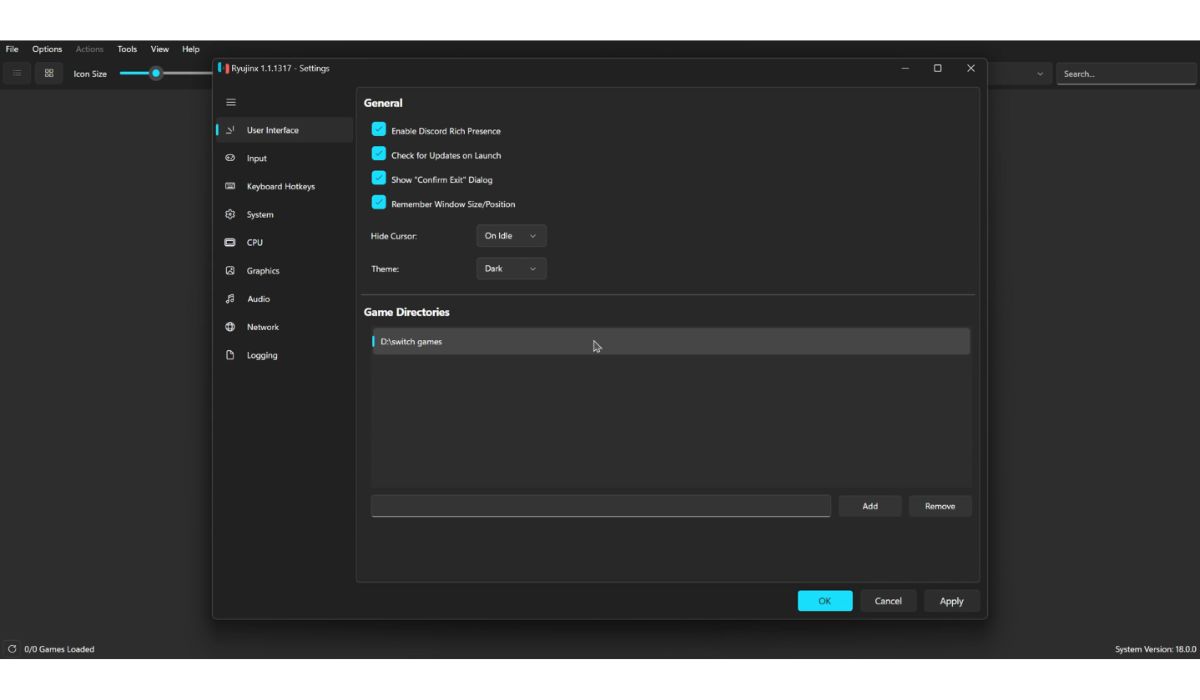
- You add a game directory inside Ryujinx settings
- Ryujinx scans files in that folder
- It checks supported formats
- It verifies the required keys
- It lists games that pass validation
If any step fails, the game stays hidden.
Supported Game File Formats in Ryujinx
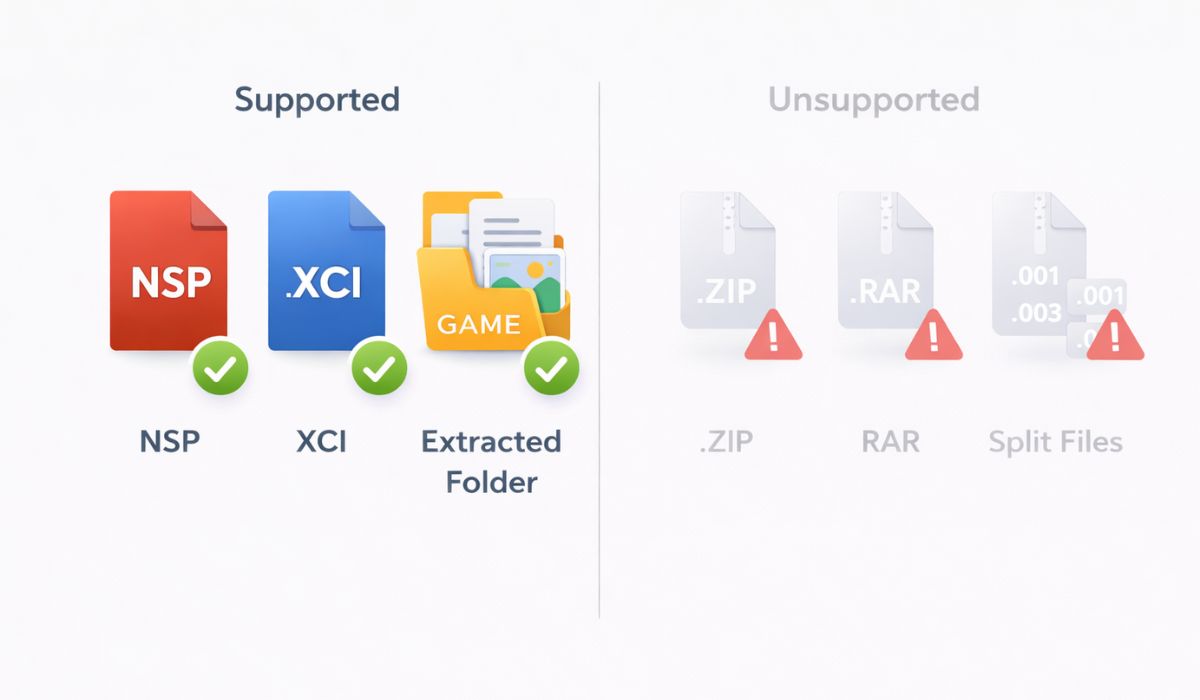
Ryujinx only supports specific formats. Unsupported files never appear, even if they look correct.
Ryujinx supports:
- NSP files
- XCI files
- Extracted game folders with proper structure
Ryujinx does not support:
- ZIP or RAR archives
- Split NSP parts
- Incomplete downloads
If the NSP is still compressed, Ryujinx will ignore it.
Game Directory Not Set or Set Incorrectly
Many users skip this step or point Ryujinx to the wrong folder. Ryujinx does not auto-detect games.
Check this carefully:
- Open Ryujinx settings
- Go to Game Directories
- Add the folder that contains NSP files
- Do not add a parent folder with mixed files
- Restart Ryujinx after adding the path
If the folder is wrong, Ryujinx scans nothing.
NSP File Is Still Compressed or Corrupted
A very common issue is leaving the NSP inside a compressed archive. Ryujinx cannot read files inside ZIP or RAR containers.
If your file ends with .zip or .rar, extract it first using 7-Zip. After extraction, you should see a single NSP file.
Corruption is another issue. If the download stopped early or failed verification, Ryujinx skips it. Rechecking file size or re-downloading often fixes this.
Missing Prod Keys or Firmware Files
Ryujinx needs system files to understand game content. Without them, detection may fail even before launch.
Make sure you have:
- Prod keys placed in the correct Ryujinx system folder
- Firmware installed using the built-in installer
- Matching firmware version for the game
If keys are missing or outdated, Ryujinx may not list games at all.
How to Refresh or Re-Scan Games in Ryujinx
Ryujinx does not always refresh instantly. After changes, a rescan helps.
Try this:
- Close Ryujinx
- Reopen the emulator
- Check the game list again
- Re-add the game directory if needed
A full restart forces a clean scan.
File Permissions and Access Issues
On some systems, Ryujinx cannot read files due to permission limits. This happens often on Linux and macOS.
Make sure Ryujinx has read access to the game folder. If the folder sits on an external drive, permissions matter even more.
NSP vs XCI – Does File Type Matter?
Both NSP and XCI work in Ryujinx, but they behave slightly differently. NSP files act like installed games, while XCI files behave like cartridges.
Detection rules stay similar. If an XCI shows but NSP does not, the issue usually points to file integrity or compression, not emulator support.
How to Prevent NSP Files From Missing Again
A few habits save time later. Keep all games in one clean folder. Extract files before adding them. Update Ryujinx and system files together. Avoid mixing archives and raw files in the same directory.
Before adding many games, test one file first. If it shows, the setup works.
Final Notes
When an NSP file does not show in Ryujinx, the cause is almost always setup-related. Folder paths, compression, missing keys, or firmware issues explain most cases. Ryujinx itself rarely fails silently without reason.
If this guide helped, share it with others setting up Ryujinx. Leave a comment with your system or issue. Someone else is likely facing the same problem right now.