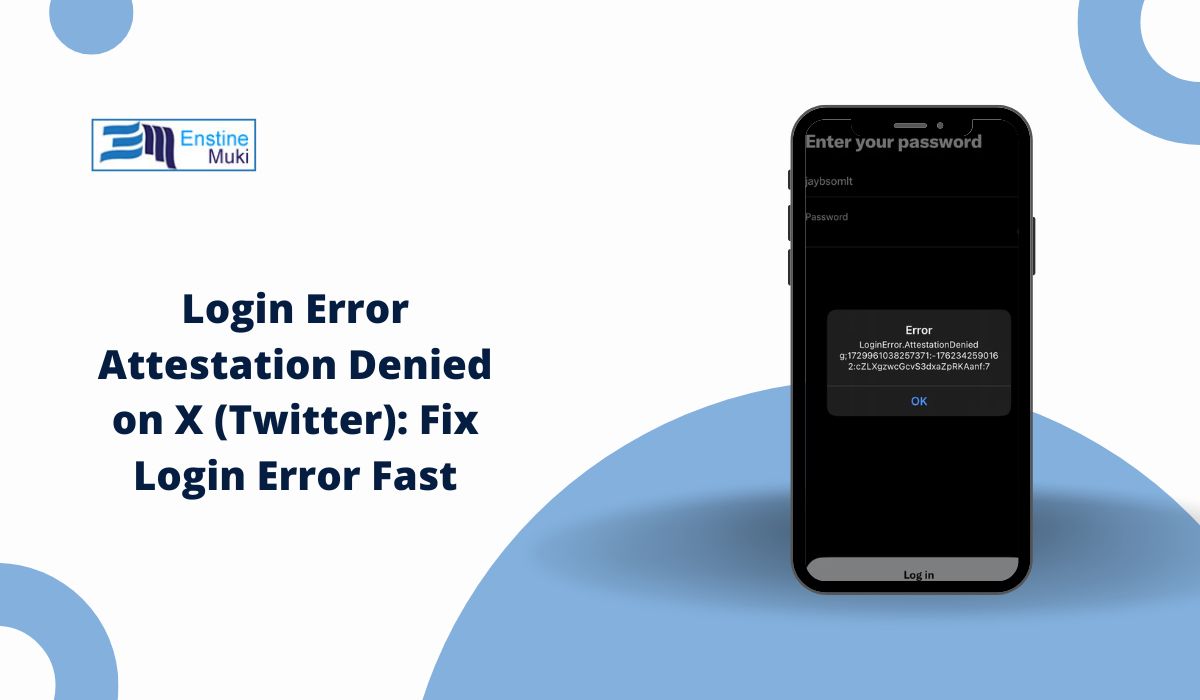
Trying to log in to X (Twitter) and suddenly seeing “LoginError.AttestationDenied”… yeah, confusing. The message looks technical, but the problem is usually simple. It means the app does not trust your device or connection at that moment.
This error connects to something called device attestation. It’s a security check. When that check fails, login gets blocked. Now the question is why it fails and how to fix it.
What Is Login Error Attestation Denied on X?
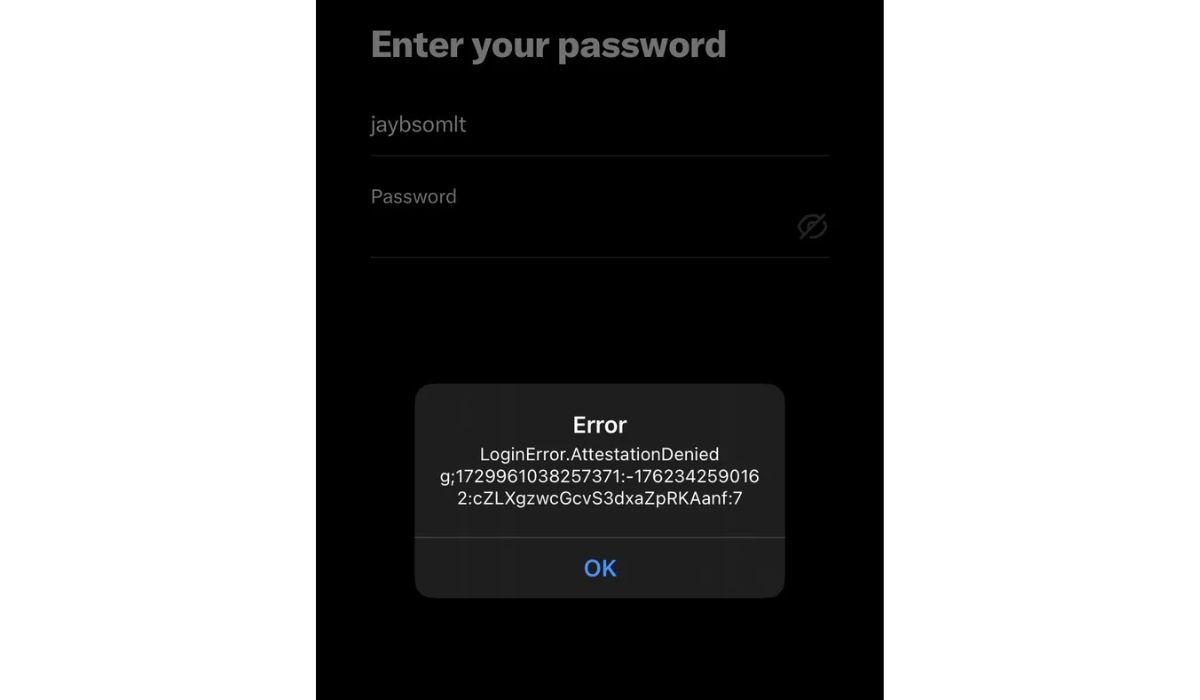
LoginError.AttestationDenied appears when X (Twitter) cannot verify your device. The system runs a quick security check before login. If the device looks unsafe, modified, or suspicious, access gets denied.
This does not always mean something serious. Sometimes it’s just a network issue or app bug. But in other cases, it links to VPN usage, rooted devices, or unusual login activity.
Why You See This Error on Twitter (X)
The error usually comes from one of these situations. Not always one clear cause, sometimes a mix.
- Using a VPN or proxy that hides your real location
- Logging in from an emulator instead of a real phone
- Outdated app or operating system
- Rooted Android or jailbroken iPhone
- Too many login attempts in a short time
- Server-side security checks flagging your device
So the system pauses your login. Not a ban. More like a “wait, something looks off” moment.
How to Fix the Error
If you are facing this issue on X (Twitter), try these fixes step by step. Don’t rush through all of them. Start simple, then move forward only if needed.
1. Restart your device
This is the easiest fix, but it works more than expected. When your phone runs for long hours, small glitches build up. These can break the login verification process used by X.
Restart your device completely, wait for it to turn back on, then try logging in again. Don’t open too many apps before testing.
2. Turn off VPN or proxy connection
If you are using a VPN, this could be the main reason for the error. X (Twitter) checks your IP and location during login. A VPN makes your connection look unusual.
Turn off VPN and try again using your normal internet. If you were switching servers before, stop doing that during login attempts.
3. Switch your internet connection
Sometimes the problem is not your device, but your network. A weak or restricted Wi-Fi connection can fail the attestation check.
Try changing your connection:
- Switch from Wi-Fi to mobile data
- Or connect to another Wi-Fi network
- Avoid public or restricted networks
After switching, wait a few seconds and log in again.
4. Clear app cache (and data if needed)
Apps store temporary files called cache. If these files get corrupted, they can block login or cause errors like this. Go to your phone settings and clear the cache for X (Twitter). If clearing cache doesn’t help, you can also clear data, but that will log you out.
5. Check and update the app
An outdated app can fail security checks. X updates its system regularly, and older versions may not work properly.
Follow these steps to update the app:
- Open your Play Store or App Store
- Search for X or Twitter
- Open the app page
- Check if an update button appears
- Tap update and wait for it to install
Once done, open the app and try logging in again.
6. Reinstall the app
If the error still appears, reinstalling the app can fix deeper issues like broken files or incorrect settings.
Remove X (Twitter) from your device, restart your phone, then install it again from the official store. This gives you a clean version of the app.
7. Avoid rooted or modified devices
If your device is rooted (Android) or jailbroken (iOS), this error can keep coming back. X uses device attestation to check if your system is safe.
Modified devices often fail this check. In that case, you may need to use a normal device or remove modifications to fix the issue properly.
Is This Error a Ban or Suspension?
No, this is not the same as an account ban.
When X (Twitter) bans or suspends an account, it shows a clear message. LoginError.AttestationDenied is different. It blocks access because the device or connection cannot be verified.
So your account is usually safe. The issue is with the login environment, not the account itself.
What Is Device Attestation and Why It Matters?
Device attestation is a security check. It confirms that your device is real, safe, and not modified. Platforms like X (Twitter) use it to stop bots, fake apps, and suspicious activity.
If the system cannot trust your device, it blocks login instead of taking risks. That’s why this error appears even when you know your account is fine.
How to Prevent This Error in the Future
You don’t need complex steps here. Just keep things clean and normal.
- Always use the official X (Twitter) app
- Avoid VPNs while logging in
- Keep your phone and app updated
- Don’t use emulators for login
- Stick to a stable internet connection
Simple habits reduce the chances of this error showing again.
Final Thoughts
LoginError.AttestationDenied looks complicated, but it’s mostly a security check issue. In most cases, it gets fixed with small steps like turning off VPN, updating the app, or switching networks.
Still stuck? That happens sometimes. Try the fixes slowly, not all at once. Have you faced this error on X (Twitter)? What worked for you? You can share your experience with us and help others solve it faster.