You open a video and expect it to play. Instead, YouTube shows Error 153. The screen loads, the player appears, but the video never starts. That moment feels annoying because nothing else seems wrong. Your internet works. Other apps work. Yet the video stays stuck. This guide explains what this error means, why it happens, how you can fix it, and how to avoid seeing it again.
What Is YouTube Error 153 Video Player Configuration Error?
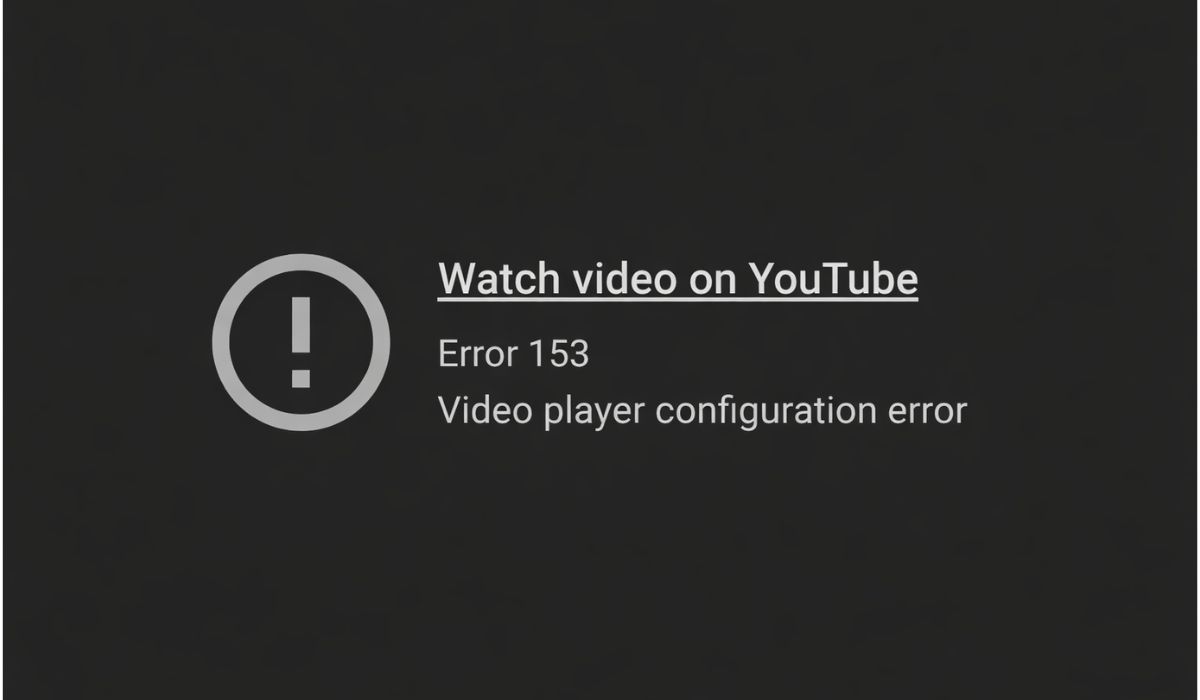
YouTube Error 153 means the video player cannot load the correct playback settings for that video. The player tries to prepare the stream, but the configuration step fails. Because of this, playback never begins. This error does not always point to a problem with your account or your device.
You usually see this error while watching videos on YouTube using a web browser, the mobile app, or a smart TV app. It may appear after clicking a video, switching videos quickly, or reopening the app. The player shows up, but the video does not play.
Common Causes of YouTube Error 153
This error can happen for several reasons. The cause depends on your device, app state, or network.
- Corrupted cache or stored app data
- Outdated YouTube app or web browser
- Temporary service issue on Google systems
- Unstable internet connection or DNS issue
- Video configuration mismatch during loading
- Device or system compatibility problem
- Browser extensions blocking the video player
Each of these issues affects how the player receives video settings.
How to Fix YouTube Error 153 Video Player Configuration Error?
In most cases, simple fixes solve this issue. Try one fix at a time. Give it a moment before moving on.
Fix #1: Refresh the Video or Restart the App
Refreshing reloads the player configuration. Here’s how you can retry safely in just a few seconds:
- Reload the video page or close the app
- Wait a few seconds
- Open the video again
- Check if playback starts
If it plays, the issue was temporary.
Fix #2: Clear Cache and Cookies
Old or broken data can block playback. Follow these easy instructions to clear cache:
- Open browser or app settings
- Clear cache and cookies
- Restart the browser or app
- Open YouTube and retry the video
This forces a clean load of the player.
Fix #3: Update the YouTube App or Browser
Older versions may not support newer video settings. You can perform the following steps to update:
- Open the app store or browser menu
- Check for updates
- Install any available update
- Restart the app or browser
After updating, try the video again.
Fix #4: Restart Your Device
A restart clears temporary system issues. Try these simple steps:
- Power off your device
- Wait about 30 seconds
- Power it back on
- Open YouTube and play the video
This helps on phones, computers, and smart TVs.
Fix #5: Switch Network or Restart Router
Network routing problems can block video setup. Below are the steps that will guide you to reset the connection:
- Restart your router
- Switch from Wi-Fi to mobile data or back
- Reopen YouTube
- Try playing the video again
A stable connection often fixes the issue.
Fix #6: Disable Browser Extensions or Ad Blockers
Some extensions block video scripts. Turn off extensions for a moment, reload the page, and test playback. If the video plays, enable extensions one by one to find the problem.
Fix #7: Try a Different Device or Browser
Some devices struggle with certain playback settings.
Follow the steps below to test:
- Open YouTube on another browser or device
- Sign in if needed
- Open the same video
- Check if it plays
If it works elsewhere, the issue is local.
Fix #8: Check YouTube Service Status
Sometimes the issue is not on your side.
Perform the following steps carefully:
- Check official service status pages
- Look for playback or streaming issues
- Wait if services show problems
- Retry later
When servers have trouble, waiting is the best option.
Prevention Tips to Avoid YouTube Error 153
A few habits can reduce repeat errors.
- Keep apps and browsers updated
- Clear cache once in a while
- Avoid heavy ad blockers on YouTube
- Use a stable internet connection
- Restart devices from time to time
- Update smart TV software
- Check service status during major issues
These steps help keep playback smooth.
Conclusion
In short, YouTube Error 153 appears when the video player cannot load the right playback configuration. It often links to cache issues, outdated apps, network problems, or short service interruptions.
Try the fixes calmly, one by one. Most users restore playback without much effort. If the error keeps showing up, it may be a service issue and waiting helps. If this article helped you, share it with others or leave a comment about which fix worked for you.