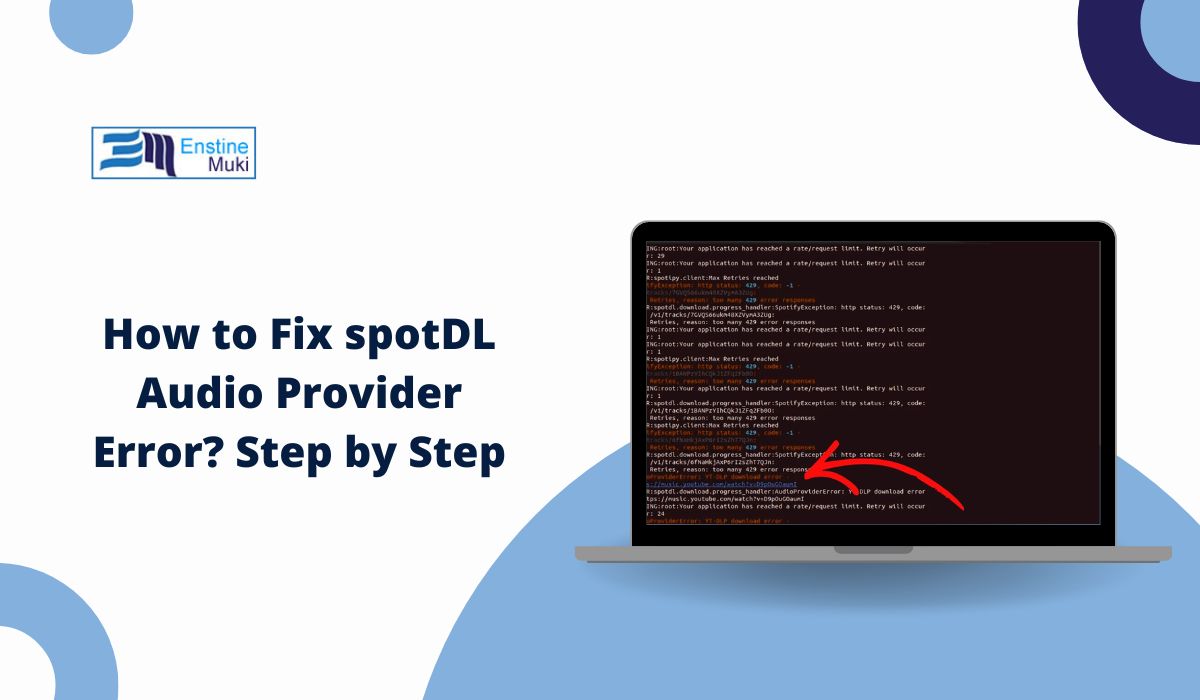
You run spotDL, paste a Spotify link, and expect the download to start. Instead, the terminal shows an audio provider error and nothing downloads. This feels frustrating because spotDL may have worked fine before, and now it stops without a clear reason. Since spotDL depends on external audio sources, this error blocks downloads completely.
This guide explains what the spotDL audio provider error means, where it appears, why it happens, how to fix it step by step, and how to prevent it from coming back.
What Is spotDL Audio Provider Error?
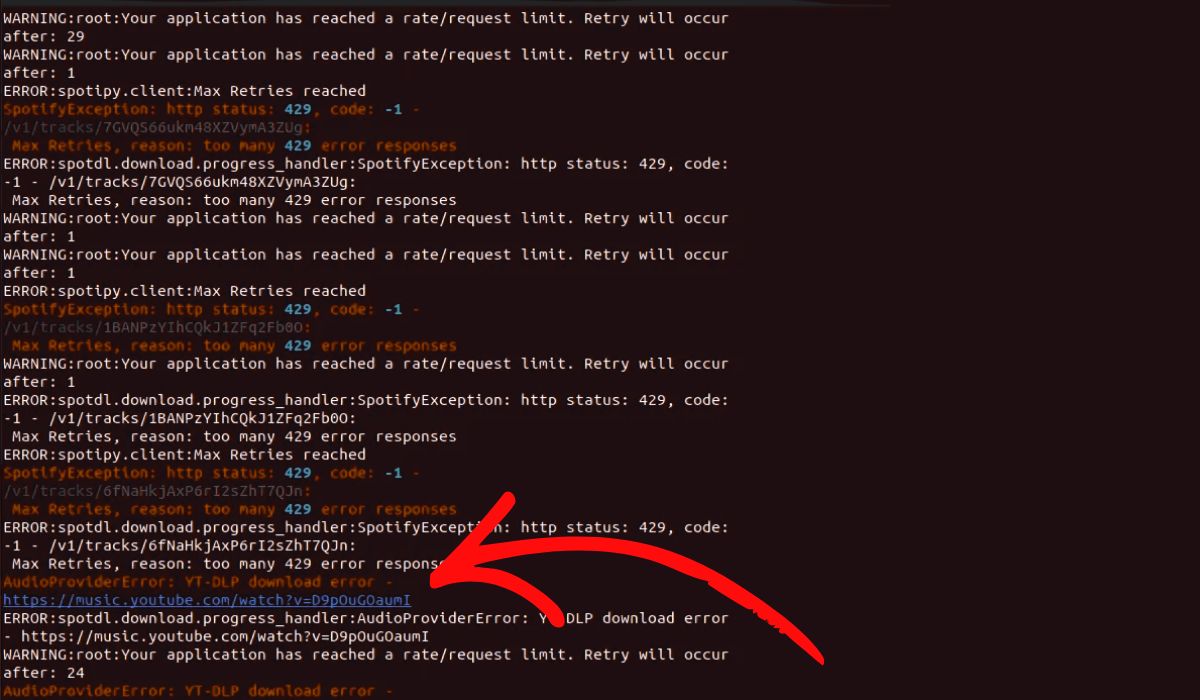
The spotDL audio provider error means the tool cannot find or use an audio source to download a track. spotDL reads track data from Spotify, but it does not download audio directly from Spotify. Instead, it searches for matching audio using providers like YouTube through tools such as yt-dlp. When that search or fetch process fails, spotDL throws an audio provider error and stops.
You usually see this error in the command line or terminal window after running a spotDL command. It may appear while processing a track, during provider lookup, or right before the download step. The exact message can vary, but it often mentions audio providers, source fetching, or provider failure.
Common Causes of spotDL Audio Provider Error
This error can happen for several reasons, depending on your setup and the provider status. Below are the most common causes.
- Outdated spotDL version
- Outdated or broken yt-dlp dependency
- FFmpeg missing or not detected
- Unsupported or mismatched Python version
- Changes in YouTube search behavior
- Network or DNS connectivity problems
- Corrupted cache or configuration files
How to Fix spotDL Audio Provider Error?
The audio provider error usually means spotDL cannot complete the audio search or fetch process. The fixes below focus on updating dependencies, fixing the environment, and refreshing configuration data.
Apply each fix one by one and test spotDL after every step so you know what resolves the issue.
Fix #1: Update spotDL to the Latest Version
Older versions of spotDL may not work with current audio providers. Provider behavior changes over time, and spotDL updates often adjust how tracks are searched and matched. When the tool falls behind, audio searches can fail even if everything else looks fine.
Updating spotDL ensures compatibility with recent provider changes and fixes known bugs related to audio lookup.
Here are the following steps which help you update spotDL.
- Open your command line or terminal
- Run the pip update command for spotDL
- Wait for the update to complete
- Confirm the installed version
- Restart the terminal
- Run spotDL again with a test track
Fix #2: Update yt-dlp
spotDL uses yt-dlp to fetch audio from providers like YouTube. If yt-dlp is outdated, provider searches may fail or return no results. This is one of the most common reasons for audio provider errors because provider sites change frequently.
Update yt-dlp using pip, restart the terminal, and test spotDL again.
Fix #3: Install or Update FFmpeg
FFmpeg handles audio processing and conversion after a provider source is found. If FFmpeg is missing or not detected, spotDL may fail during the provider stage or right after fetching audio. Even if spotDL finds a source, it cannot finish without FFmpeg working correctly.
Install or update FFmpeg using your system’s package manager, then confirm it runs from the command line before retrying spotDL.
Fix #4: Check Python Version Compatibility
spotDL depends on a compatible Python version to run its dependencies correctly. Using an unsupported or outdated Python version can break provider-related modules and cause audio lookup failures.
Check your Python version against spotDL documentation and switch to a supported version if needed.
Fix #5: Reinstall spotDL Cleanly
Corrupted installations or broken dependencies can cause provider errors that updates alone do not fix. Reinstalling removes damaged files and resets the tool to a clean state.
Follow the steps below to reinstall spotDL.
- Uninstall spotDL using pip
- Close the terminal
- Reopen the terminal
- Reinstall spotDL
- Confirm installation
- Test with a single track
Fix #6: Clear spotDL Cache and Config
Cached provider data and old configuration files can interfere with new searches. When spotDL keeps using outdated cache data, it may fail to locate valid audio sources even after updates.
Delete the spotDL cache and config folders from your user directory, restart the terminal, and try the command again.
Fix #7: Check Internet Connection and DNS
spotDL needs a stable internet connection to search providers and fetch metadata. DNS issues or unstable connections can interrupt provider lookups and cause audio provider errors.
Make sure your internet connection is stable. If needed, switch to a public DNS provider and retry.
Fix #8: Try a Different Audio Provider Source
Sometimes a specific provider fails while others still work. Track metadata or search results may not match correctly for certain songs.
Test with different tracks or adjust provider-related settings if available to see if the issue is track-specific.
Fix #9: Check spotDL GitHub Issues or Logs
When provider changes affect many users, the issue is often reported quickly on GitHub. Checking logs and recent issues can confirm whether the problem is widespread.
If many users report the same error, waiting for an official update may be the best option.
Prevention Tips to Avoid spotDL Audio Provider Error
Prevention helps reduce repeat errors and saves time. These habits keep spotDL working smoothly.
- Keep spotDL updated regularly
- Update yt-dlp often
- Maintain a working FFmpeg installation
- Use supported Python versions
- Avoid breaking system PATH variables
- Monitor provider changes
- Read release notes before updating
Conclusion
In short, the spotDL audio provider error means the tool cannot find or fetch audio from its source. This usually happens because of outdated dependencies, missing tools like FFmpeg, Python version issues, or provider-side changes. While the error looks serious, most causes are easy to fix with updates and cleanup.
Try the fixes one by one and follow the prevention tips to avoid future problems. If the error continues, check the spotDL GitHub page for active issues. If this article helped you, share it with others and leave a comment about which fix worked for you.