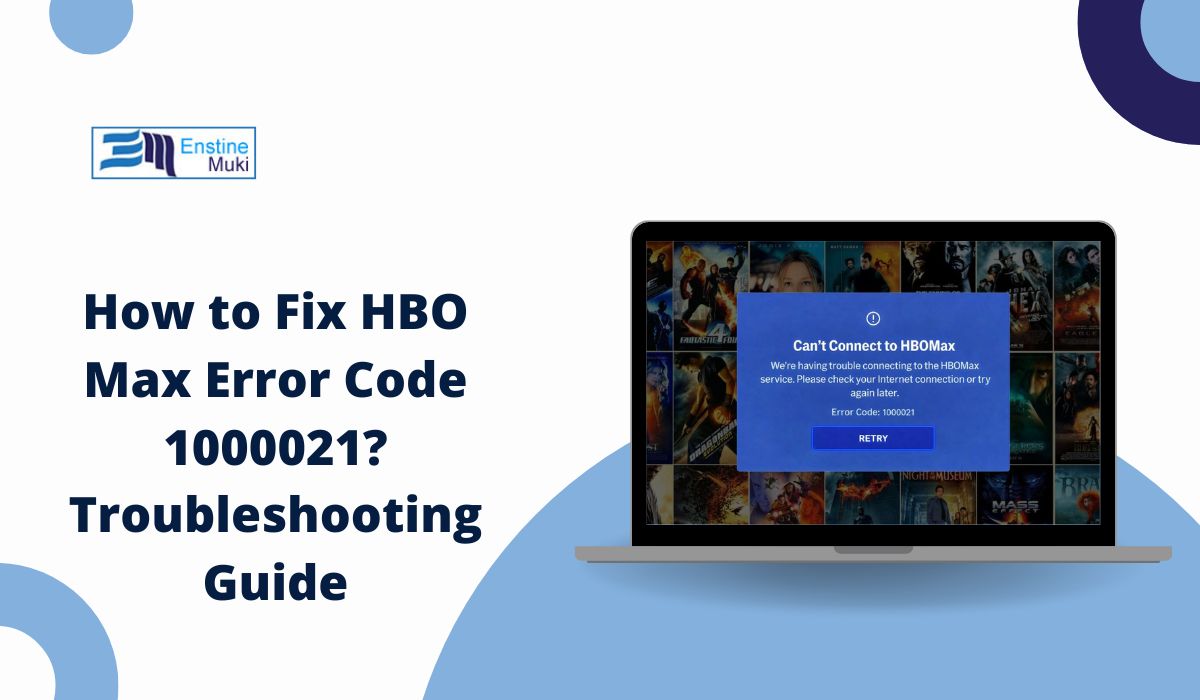
Sometimes you open HBO Max, pick a movie, press play, and then everything stops with error code 1000021. That moment is frustrating because the app looks fine, but the video just will not start. This error usually interrupts streaming right when playback should begin.
In this guide, you will learn what the error means, where it shows up, why it happens, and how to avoid running into it again. The goal is to help you understand the problem clearly so you can get back to watching without confusion.
What Is HBO Max Error Code 1000021?
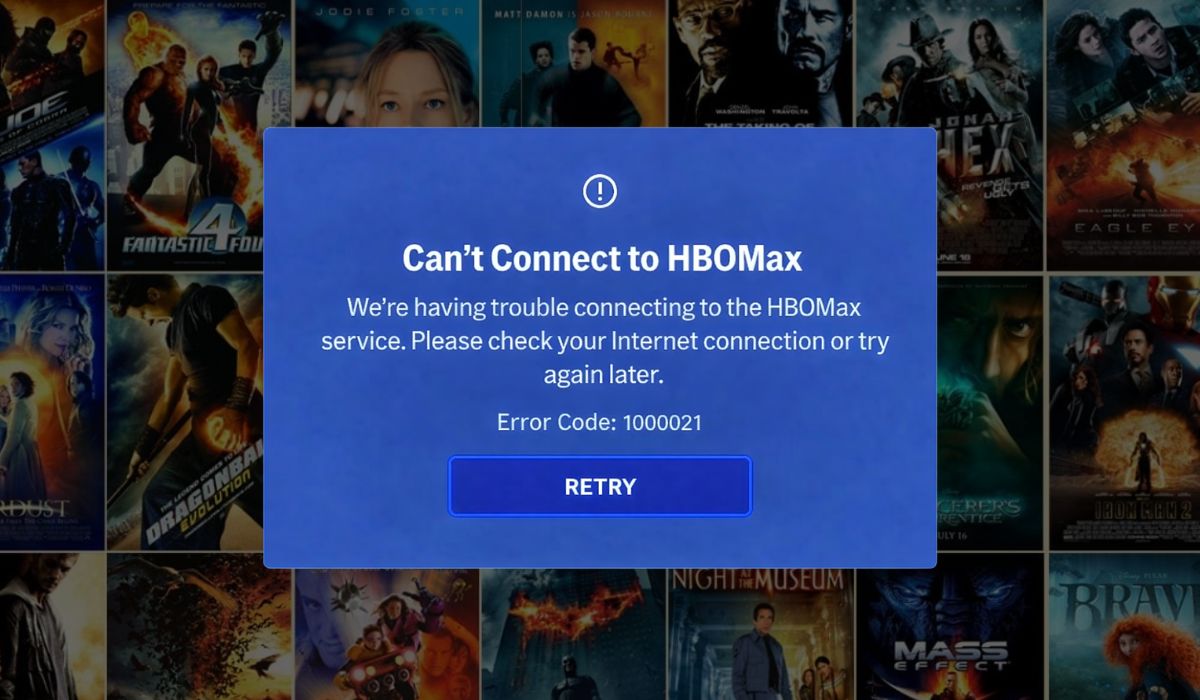
HBO Max error code 1000021 means the app cannot complete a playback request. The system receives your request to play a video, but something blocks the stream before it starts. This usually involves a problem in how the HBO Max app communicates with your device or with HBO Max servers operated by Warner Bros. Discovery. The app stays open, but the video never loads, which points to a playback or authorization failure rather than a login issue.
You normally see this error after selecting a movie or episode. It can appear on Smart TVs, streaming devices like Roku or Fire TV, mobile apps on Android or iOS, and sometimes on web browsers. The screen may pause briefly, then show the error code without more detail.
Common Causes of HBO Max Error Code 1000021
This error can happen for several reasons, depending on your device setup, internet connection, or app state. In many cases, the issue is temporary, but knowing the common causes helps narrow things down faster instead of guessing.
The most common causes include:
- An unstable or slow internet connection during video loading
- Corrupted cache or temporary data inside the HBO Max app
- An outdated HBO Max app version
- VPN, proxy, or custom DNS settings affecting streaming traffic
- Device or Smart TV firmware compatibility problems
- Account session or playback authorization issues
- Temporary problems with HBO Max servers or content delivery systems
Any one of these can stop playback even when the app opens normally.
How to Fix HBO Max Error Code 1000021?
I This error usually shows up when HBO Max cannot finish a playback request. The app opens, the content appears, but the stream never starts. In most cases, the problem comes from a temporary app issue, an unstable network, or a device setting that blocks playback.
Fix #1: Restart the HBO Max App and Your Device
Temporary glitches can stop HBO Max from loading videos properly. Restarting clears short-term memory issues and resets the connection between the app and HBO Max servers.
After a restart, the app often reconnects cleanly and playback works again without showing error code 1000021.
Fix #2: Check Your Internet Connection Stability
HBO Max needs a steady internet connection to stream video. If the connection drops or slows down while loading, playback may fail. This happens often on weak Wi-Fi or crowded networks. Once your internet becomes stable, the app can load content without interruption.
Fix #3: Clear HBO Max App Cache or Browser Data
Corrupted cache files can block playback even when the app opens normally. Clearing cache removes broken data and forces the app to rebuild clean files.
Follow the steps below to easily clear app cache:
- Open your device settings
- Go to Apps or Application Manager
- Select HBO Max
- Tap Storage
- Choose Clear Cache
- Reopen the app and try playing content
This does not remove your account or subscription.
Fix #4: Update the HBO Max App
An outdated app may lose compatibility with current streaming systems. When this happens, playback validation can fail and trigger error code 1000021.
Here’s how you can update the app in just a few seconds:
- Open the app store on your device
- Search for HBO Max
- Tap Update if available
- Wait for the update to finish
- Restart the app
Updates often fix playback and connection issues.
Fix #5: Disable VPN, Proxy, or Custom DNS
HBO Max uses regional checks and secure routing. VPNs, proxies, or custom DNS settings can interfere with this process. If you are using any of these tools, turn them off completely. Then reopen the app and try streaming again.
Fix #6: Sign Out and Sign Back Into Your HBO Max Account
Sometimes the app keeps an expired or broken session. When that happens, playback fails even though browsing still works. Signing out refreshes your account session and forces the app to request new playback permission. After signing back in, HBO Max often plays content without errors.
Fix #7: Try a Different Device or Network
This step helps identify whether the issue is device-specific or network-related. If HBO Max works on another phone, TV, browser, or internet connection using the same account, the problem stays with the original device or network.
Prevention Tips to Avoid HBO Max Error Code 1000021 in the Future
Preventing this error is often easier than fixing it after it appears. Small habits can keep the app stable and reduce playback failures over time. When your app, device, and network stay in good shape, streaming usually works without interruption.
To lower the chances of seeing error code 1000021 again:
- Keep the HBO Max app updated on all devices
- Restart your router regularly to refresh the connection
- Avoid using VPNs while streaming region-restricted content
- Use a stable Wi-Fi or wired internet connection
- Clear app cache occasionally to remove corrupted data
- Update Smart TV or streaming device software
- Sign out and back into your account after major updates
These steps help maintain a clean connection between your device and HBO Max servers.
Conclusion
In short, HBO Max error code 1000021 appears when the app cannot start video playback, even though it opens correctly. The issue usually relates to internet stability, app data, device software, or playback authorization.
If you run into this error, understanding the causes and prevention tips can save time and frustration. When the problem keeps returning, contacting official HBO Max support is the safest next step, especially for account or service-level issues. If this article helped you, consider sharing it with others who stream on HBO Max, and leave a comment about what worked for you.