When the Fetch app stops working, it can feel frustrating, especially if you are trying to scan receipts or check your rewards. The app may not open, it may freeze, or it may fail during login or scanning. These problems usually come from simple issues like network trouble, app bugs, or missing permissions.
This guide explains what “Fetch app not working” means, why it happens, and how to fix it using seven clear solutions.
What Does “Fetch App Not Working” Mean?
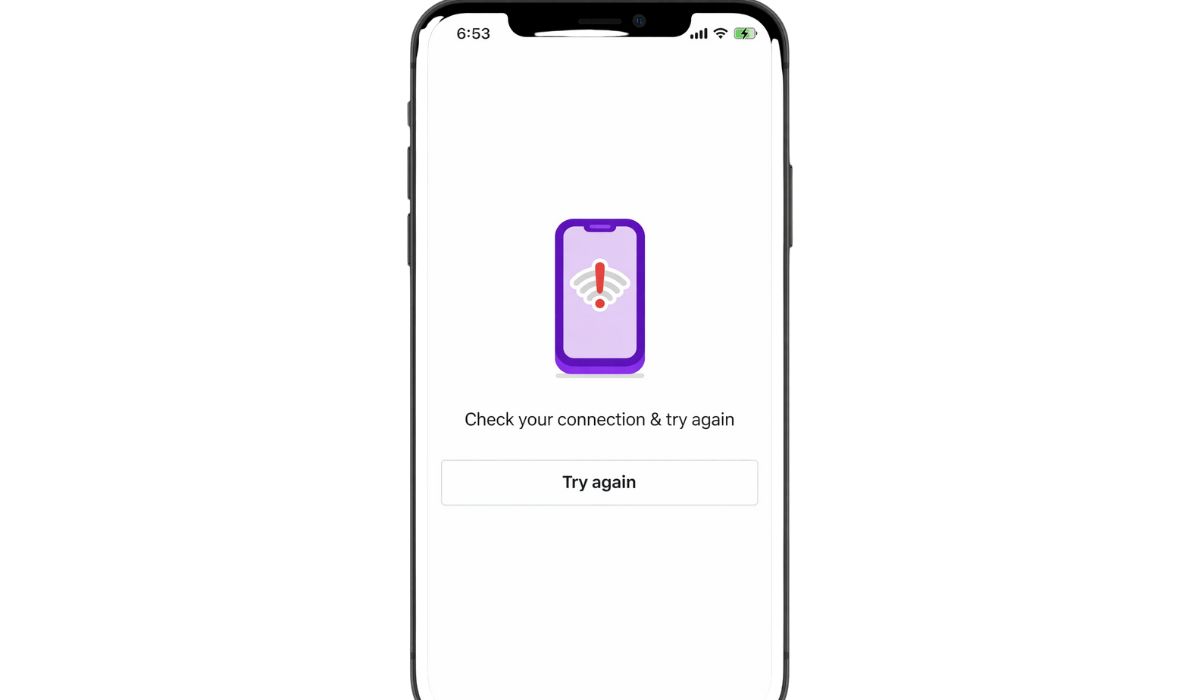
When people say the Fetch app is not working, they usually mean the app fails to perform its main functions. This can include not opening at all, freezing on a loading screen, or showing errors during receipt scanning.
You may notice this issue on the login screen, during receipt uploads, or when trying to view your points. On an iPhone or Android phone, the app might crash suddenly or stay stuck without responding. These signs point to a problem with the app, the device, or the connection between them.
Common Reasons the Fetch App Stops Working
The Fetch app can stop working for several reasons, depending on your phone and settings. Below are the most common ones users face.
- Temporary Fetch server outage
- Weak or unstable internet connection
- Outdated Fetch app version
- Corrupted app cache or stored data
- Missing camera or storage permissions
- Phone software compatibility issues
- Too many background apps running
How to Fix Fetch App Not Working on Android and iPhone?
In most cases, you can fix the Fetch app by checking basic settings and refreshing the app or device. Try the fixes below in order. Stop once the app starts working again.
Fix #1: Check Your Internet Connection
Fetch needs a stable internet connection to load data and upload receipts. If your Wi-Fi or mobile data is weak, the app may fail to load or sync.
Switch between Wi-Fi and mobile data to test which works better, and make sure airplane mode is turned off.
Fix #2: Restart the Fetch App and Your Phone
Temporary glitches often cause apps to freeze or crash. Restarting clears these issues and refreshes system resources.
Follow these steps to restart properly.
- Close the Fetch app completely
- Remove it from recent apps
- Turn off your phone
- Wait for 30 seconds
- Turn the phone back on
- Open Fetch again
Fix #3: Update the Fetch App
An outdated app version can break features like login or receipt scanning. Updates often include bug fixes and compatibility improvements.
Open the Google Play Store or Apple App Store, search for Fetch Rewards, and install any available updates.
Fix #4: Clear App Cache or App Data (Android Only)
On Android devices, corrupted cache files can stop Fetch from working correctly. Clearing them forces the app to rebuild fresh data.
Here is how to do it.
- Open Settings
- Go to Apps or App Management
- Select Fetch
- Tap Storage
- Clear Cache
- Restart the app
Fix #5: Check Camera and App Permissions
Fetch needs camera access to scan receipts and storage access to save data. If permissions are blocked, the app may not work as expected.
Make sure Fetch has access to:
- Camera
- Storage or Files
- Network access
After enabling permissions, reopen the app and try again.
Fix #6: Log Out and Log Back Into Fetch
Account sync issues can cause loading problems or missing points. Logging out refreshes the account connection.
Sign out from the app settings, close the app, reopen it, and log back in using your correct credentials.
Fix #7: Reinstall the Fetch App
If nothing else works, reinstalling the app is the final fix. This removes corrupted files and installs a clean version.
Follow these steps carefully.
- Uninstall the Fetch app
- Restart your phone
- Download Fetch again from the app store
- Log in to your account
- Test receipt scanning
Prevention Tips to Avoid Fetch App Issues in the Future
Prevention helps keep the Fetch app stable and reduces future problems.
- Keep the Fetch app updated
- Use a stable internet connection
- Avoid force-closing the app during scans
- Allow all required permissions
- Update your phone’s operating system
- Restart your phone regularly
- Check for Fetch server issues if problems appear
Conclusion
In summary, the Fetch app usually stops working due to connection issues, outdated software, corrupted cache, or missing permissions. These problems can block receipt scanning or prevent the app from loading properly.
Try the seven fixes in order and apply the prevention tips to keep the app running smoothly. If the Fetch app still does not work after all steps, contacting Fetch Rewards support is the best next option. If this guide helped you, consider sharing it or leaving a comment about which fix worked for you.