
You’re working on a project, things feel smooth, and then it happens. You try to save or update, and ChatGPT shows an error. No details. No hint. That break in flow feels frustrating because it stops real work. This guide explains what the error means, why it shows up, how to fix it step by step, and how to avoid running into it again.
What Is “Error Creating or Updating Project” in ChatGPT?
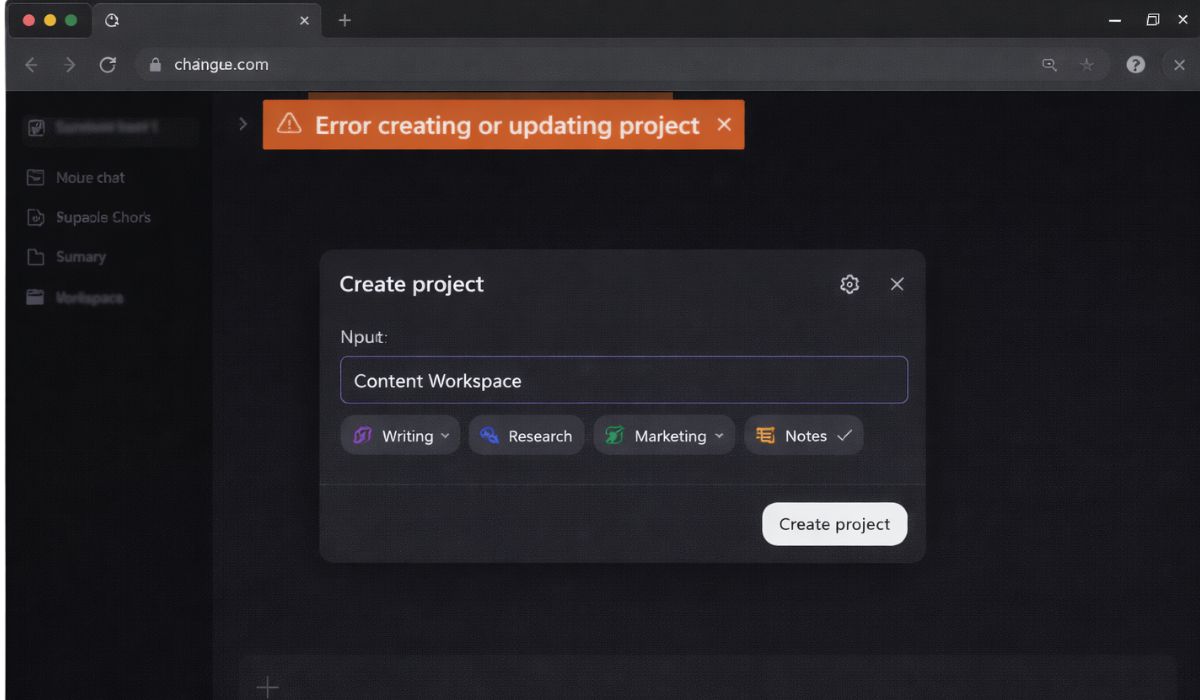
This error means the system could not save or apply changes to your project at that moment. The request to create a new project or update an existing one did not complete. In most cases, the project itself is not deleted. The save action just fails and stops midway.
You usually see this inside the projects or workspace area of ChatGPT. It can appear when you create a new project, rename one, update settings, or save content after editing for a while. It happens in a web browser, not at the idea or content level.
Common Causes of Error Creating or Updating Project
This error can happen for several reasons, depending on your browser state, session, or system status.
- Login session expired after being idle
- Temporary delay on ChatGPT servers
- Browser cache or cookie conflict
- Unstable or dropping internet connection
- Browser extensions blocking requests
- Using an outdated or unsupported browser
- Workspace sync delay during save
Each cause affects how the save request reaches the backend.
How to Fix Error Creating or Updating Project on ChatGPT?
In most cases, simple actions fix this issue. Try one fix at a time. Don’t rush through all of them.
Fix #1: Refresh the Page and Retry
Refreshing clears a stuck request and reloads the workspace state.
Here are the following steps which help you retry safely:
- Refresh the page
- Wait a few seconds
- Open the project again
- Try saving once
If it works, you’ll see the update apply right away.
Fix #2: Log Out and Log Back In
An expired session often blocks save actions.
Follow the steps below to reset your session:
- Log out of ChatGPT
- Close the browser tab
- Reopen the browser
- Log back in
- Try updating the project
This creates a fresh session with the server.
Fix #3: Clear Browser Cache and Cookies
Old data can conflict with new save requests.
You can perform the following steps to clear cache:
- Open browser settings
- Clear cache and cookies
- Restart the browser
- Open ChatGPT again
After this, the workspace usually loads clean.
Fix #4: Disable Browser Extensions
Some extensions block scripts, storage, or network calls. Ad blockers, privacy tools, and script filters can interfere with project saves. Turn them off temporarily and retry.
Fix #5: Try a Different Browser
Not all browsers behave the same with web apps.
Follow these easy instructions to test another browser:
- Open a supported browser
- Log into ChatGPT
- Open the same project
- Try saving changes
If it works there, the issue is browser-specific.
Fix #6: Check Your Internet Connection
Save actions need a stable link. Drops can cancel the request mid-way. Switch from Wi-Fi to mobile data or restart your router if needed. Then retry once the connection feels stable.
Fix #7: Avoid Long Idle Sessions
Leaving a project open without activity can expire the session silently. Before saving after a long pause, refresh the page. This reduces failed updates.
Fix #8: Check ChatGPT System Status
Sometimes the issue is not on your side.
Perform the following steps carefully:
- Open the OpenAI status page
- Check if services show delays
- Wait if an incident is active
- Retry later
During outages, saves may fail across accounts.
Prevention Tips to Avoid This Error in the Future
Small habits help reduce repeat issues.
- Save work in smaller steps
- Refresh the page before long edits
- Keep your browser up to date
- Use supported browsers only
- Limit heavy browser extensions
- Maintain a stable internet connection
- Check status before major project changes
These steps keep sessions and saves steady.
Conclusion
In short, this error appears when ChatGPT cannot save or sync project changes at that moment. It usually relates to sessions, browser data, connection issues, or temporary system delays from OpenAI.
Try the fixes calmly and one by one. Most users resolve it without losing work. If the error keeps returning, waiting or contacting support is the right move. If this article helped, share it with others or leave a comment about which fix worked for you.