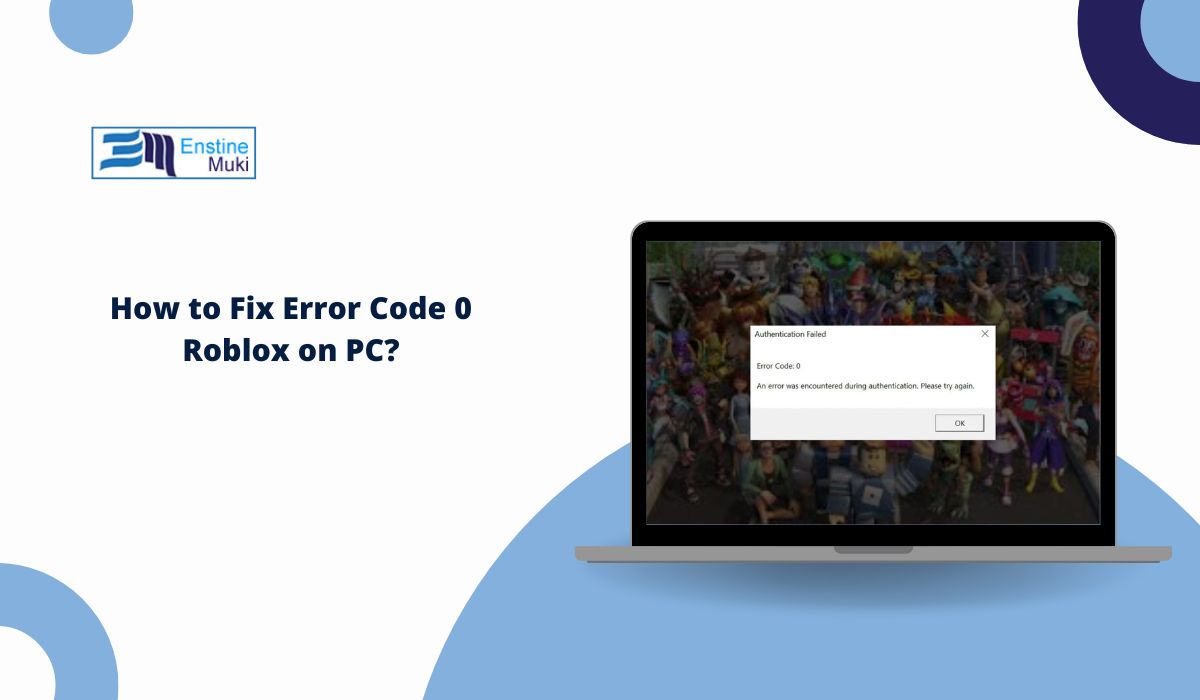
You open Roblox, click a game, and suddenly you see error code 0. The game does not load. Sometimes it disconnects before joining a server. That can feel annoying, especially when your internet seems fine. In most cases, this error is related to network connection, firewall settings, or corrupted Roblox files. This guide explains what error code 0 means, why it happens, and how to fix it step by step.
What Is Error Code 0 in Roblox?
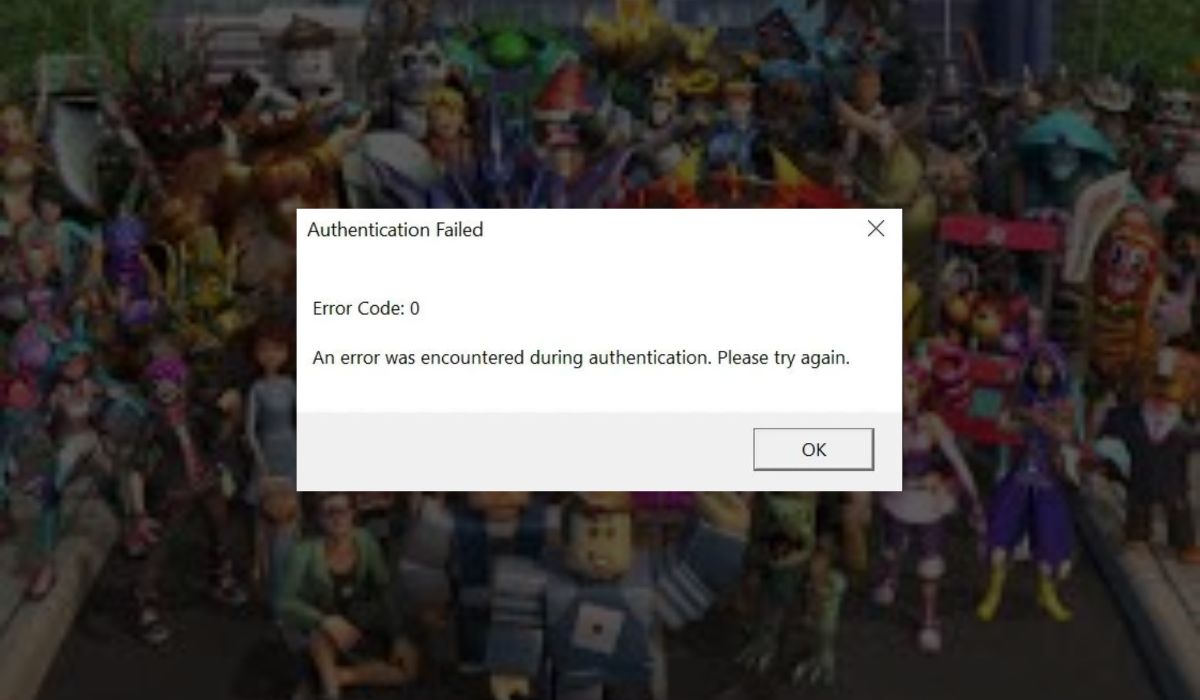
Error code 0 in Roblox usually appears when the Roblox Player cannot properly connect to Roblox servers. Roblox depends on a stable internet connection and clear communication between your device and its cloud servers. If something interrupts that connection, such as firewall blocking, DNS issues, or unstable Wi-Fi, the game client may fail to load. This error does not normally mean your account is banned. It is usually a connection or system-level issue that prevents the Roblox client from completing the login or server join process.
Players often see this error while launching Roblox on Windows 10, Windows 11, or macOS. It may appear when joining a game, during startup, or when reconnecting after a disconnect.
Common Causes of Error Code 0 Roblox
This error usually appears when Roblox cannot properly communicate with its servers or when system settings block internet traffic.
- Weak or unstable internet connection
- Windows Firewall blocking Roblox Player
- Antivirus software interfering with the game client
- Corrupted Roblox cache or temporary files
- Outdated Roblox application
- DNS server configuration problems
- VPN or proxy service conflict
Most causes are related to network communication or security software.
How to Fix Error Code 0 Roblox?
To resolve this issue efficiently, start by checking your internet connection and system security settings. In many cases, the solution is simple and quick.
Fix #1: Restart Your Router
A temporary network glitch can block server communication.
Follow these steps:
- Turn off your router.
- Wait for 30 seconds.
- Turn the router back on.
- Wait until the internet reconnects.
- Launch Roblox again.
This refreshes your network connection.
Fix #2: Check Roblox Server Status
Sometimes the issue is on Roblox’s side.
Here are the following steps which help you check server status:
- Visit the official Roblox status page.
- Check if there are active outages.
- Look for connection or server warnings.
- Wait if servers are under maintenance.
If servers are down, you must wait until they are restored.
Fix #3: Disable Antivirus Temporarily
Some antivirus programs block Roblox network traffic.
You can perform the following steps:
- Open your antivirus software.
- Disable real-time protection temporarily.
- Launch Roblox.
- If it works, add Roblox to the exceptions list.
- Turn protection back on.
Always re-enable protection after testing.
Fix #4: Allow Roblox Through Firewall
Windows Firewall may block Roblox Player.
Follow these easy instructions:
- Open Windows Security.
- Click Firewall and Network Protection.
- Select Allow an app through firewall.
- Add Roblox Player to the list.
- Save changes.
Firewall exceptions allow proper server communication.
Fix #5: Clear Roblox Cache Files
Corrupted temporary files can cause loading errors.
Try these simple steps:
- Press Windows + R.
- Type %localappdata% and press Enter.
- Locate the Roblox folder.
- Delete temporary cache files.
- Restart your computer.
Clearing cache removes damaged data.
Fix #6: Flush DNS Settings
DNS problems can interrupt server connections.
Follow the steps below:
- Open Command Prompt as administrator.
- Type ipconfig /flushdns.
- Press Enter.
- Wait for confirmation message.
- Restart Roblox.
Flushing DNS refreshes network routing.
Fix #7: Reinstall Roblox
If none of the fixes work, reinstalling can solve corrupted installation files.
Follow these steps carefully:
- Open Control Panel.
- Uninstall Roblox.
- Restart your computer.
- Download the latest version from the official website.
- Install and launch again.
A clean install removes damaged files.
Prevention Tips to Avoid Roblox Error Code 0
Stable internet and updated software reduce connection errors. Roblox relies on smooth communication between your device and its servers. Small habits help prevent future issues.
- Keep Roblox updated
- Maintain stable Wi-Fi connection
- Restart your router weekly
- Avoid using VPN during gameplay
- Keep Windows updated
- Add Roblox to antivirus exceptions
- Clear cache files occasionally
These steps reduce the risk of connection failures.
Conclusion
Error code 0 in Roblox usually points to a network or system configuration issue. It is not typically a ban or account problem. Most players fix it by restarting their router, adjusting firewall settings, or clearing cache files.
Work through the fixes one by one. If the issue continues, contact Roblox Support for further help. If this guide helped you solve the problem, share it with friends or leave a comment about which fix worked for you.