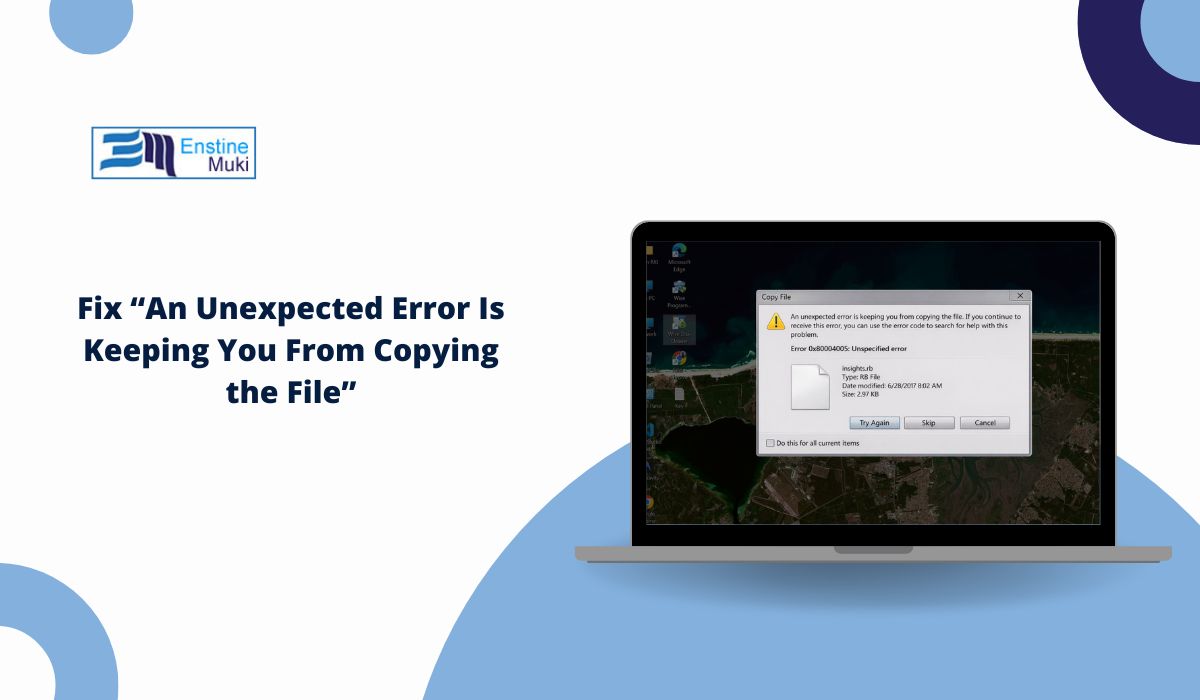
You try to copy a file in Windows, and suddenly a message appears: “An unexpected error is keeping you from copying the file.” The transfer stops. The file will not move. That can be frustrating, especially when you are copying files to a USB drive or external hard drive. The good news is this error is usually caused by file system limits, disk problems, or permission settings. In this guide, you’ll learn what it means and how to fix it step by step.
What Does “An Unexpected Error Is Keeping You From Copying the File” Mean?
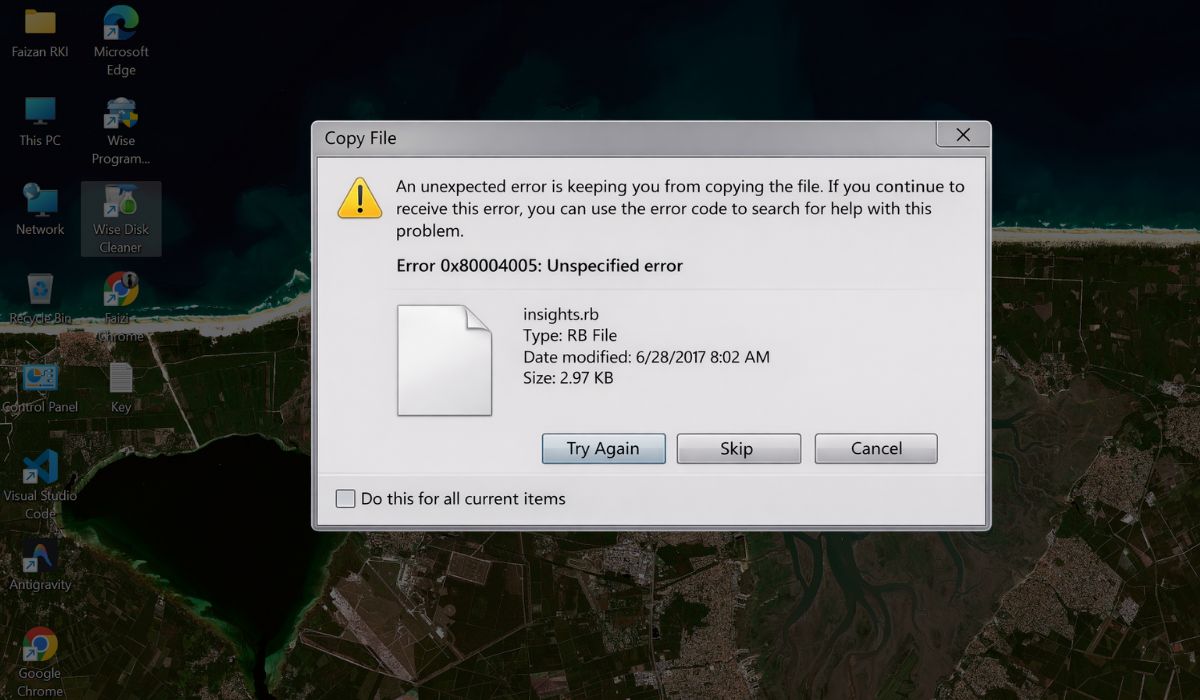
This message appears in Windows 10 or Windows 11 when File Explorer cannot complete a file transfer. Windows tries to copy data from one location to another, but something blocks the process. It may be a file system limitation, such as FAT32 not supporting large files. It could also be disk corruption, missing permissions, or antivirus interference. Sometimes Windows shows additional error codes like 0x80070057 or 0x80070052. These codes usually relate to storage or formatting problems, not permanent file damage.
You will often see this error when copying files to a USB flash drive, an external hard drive, or a network location. It can also appear when moving files between folders on your internal drive.
Common Causes of This File Copy Error
This error can occur due to file system limits, permission restrictions, or storage problems.
- File size exceeds FAT32 limit (over 4GB)
- Destination drive is full
- Disk corruption or bad sectors
- File path too long
- Insufficient administrator permissions
- Antivirus blocking file transfer
- Corrupted source file
Each of these can interrupt File Explorer during transfer.
How to Fix “An Unexpected Error Is Keeping You From Copying the File”?
To resolve this issue efficiently, check file size, storage space, and disk health first. Most users fix this without reinstalling Windows.
Fix #1: Check File Size and Drive Format
FAT32 drives cannot store files larger than 4GB.
Follow these steps:
- Right-click the destination drive.
- Select Properties.
- Check the File System type (FAT32 or NTFS).
- If FAT32 and the file is large, back up the drive.
- Format the drive to NTFS if needed.
NTFS supports larger files and avoids this limit.
Fix #2: Free Up Storage Space
If the drive is full, copying will fail.
You can perform the following steps:
- Open File Explorer.
- Right-click the destination drive.
- Check available free space.
- Delete unnecessary files.
- Try copying again.
Even small storage shortages can cause errors.
Fix #3: Run CHKDSK Disk Repair
Disk errors can block file transfers.
Here are the following steps which help you run CHKDSK:
- Open Command Prompt as administrator.
- Type
chkdsk X: /f(replace X with your drive letter). - Press Enter.
- Wait for the scan to complete.
- Restart your PC if prompted.
CHKDSK repairs file system errors and bad sectors.
Fix #4: Shorten the File Path
Windows has path length limits.
Try these simple steps:
- Move the file to Desktop temporarily.
- Rename folders with shorter names.
- Avoid deeply nested folders.
- Try copying again.
Shorter file paths prevent length-related errors.
Fix #5: Run File Explorer as Administrator
Permission restrictions can block transfers.
Follow these steps carefully:
- Close File Explorer.
- Right-click File Explorer.
- Select Run as administrator.
- Attempt the file copy again.
Administrator privileges grant higher access rights.
Fix #6: Disable Antivirus Temporarily
Security software may block file movement.
You can perform the following steps:
- Open Windows Security or your antivirus app.
- Disable real-time protection temporarily.
- Try copying the file.
- If successful, add the file to exceptions.
- Re-enable protection.
Always turn protection back on after testing.
Fix #7: Repair System Files Using SFC
Corrupted Windows system files may interfere with File Explorer.
Follow the steps below:
- Open Command Prompt as administrator.
- Type
sfc /scannow. - Press Enter.
- Wait for the scan to finish.
- Restart your computer.
System File Checker repairs damaged Windows components.
Prevention Tips to Avoid File Copy Errors
Keeping your system healthy reduces transfer problems. Windows relies on stable file systems and disk integrity for smooth operations. Small maintenance steps prevent bigger issues later.
- Use NTFS for large files
- Safely eject USB drives
- Keep enough free storage space
- Run disk scans occasionally
- Avoid extremely long file names
- Keep Windows updated
- Back up important data regularly
Conclusion
“An unexpected error is keeping you from copying the file” usually points to file system limits, disk errors, or permission problems. It rarely means permanent data loss. In most cases, checking file size, repairing the disk, or adjusting permissions fixes the issue quickly.
Try the fixes one by one. If the error continues, consider contacting Microsoft support for further help. If this guide helped you, share it with others who may face the same problem.