Many users open dbPoweramp to rip a CD and expect track titles to appear right away. Instead, they see blank fields or generic names like Track 01. This feels confusing, especially when the internet works and the CD plays fine. The issue usually links to metadata, not the audio itself.
dbPoweramp relies on online databases to identify CDs and fill in song titles, album names, and artist details. When something blocks that process, the rip still works, but the titles do not show. Understanding where this breaks helps fix the problem fast.
What “Not Showing Title” Means in dbPoweramp?
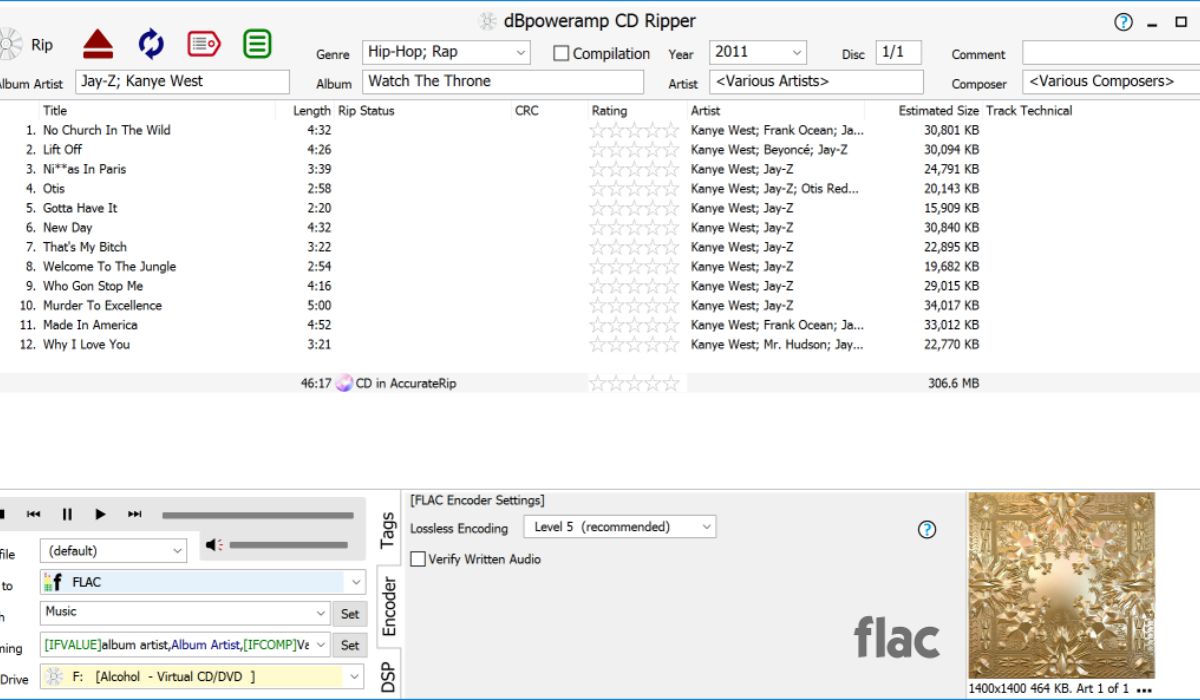
When dbPoweramp does not show a title, it means the software cannot match your CD with a metadata record. The audio data reads correctly, but the text fields stay empty or default to basic numbering. This affects track title, album name, and sometimes artist name.
This problem does not damage the music files. It only affects how they appear in your library and music players.
How dbPoweramp Normally Gets Track Titles
dbPoweramp does not guess song names. It checks disc information against several online sources using its built-in system.
It uses PerfectMeta, which combines results from multiple providers, including:
- MusicBrainz
- GD3
- freedb
The software reads the CD’s table of contents, often called the CD TOC, then searches these databases for a match. If it finds one, titles load automatically.
Common Reasons dbPoweramp Does Not Show Titles
Several small issues can stop metadata from loading. Most of them are simple to fix.
Common causes include:
- Internet connection blocked or unstable
- Metadata providers disabled in settings
- Firewall blocking dbPoweramp access
- Rare or regional CD pressing not found online
- Disc scratches causing incorrect CD TOC
- Cached metadata conflicts from earlier rips
Any one of these can stop titles from appearing even though ripping still works.
Check Metadata Provider Settings in dbPoweramp
Before changing anything else, check if metadata services are active. This step solves many cases.
Open dbPoweramp settings and look for metadata options. Make sure PerfectMeta is enabled and at least one provider like MusicBrainz or GD3 is checked. If all providers are off, dbPoweramp has nowhere to look for titles.
After enabling providers, restart the program and reload the CD.
When the CD Is Not Recognized Properly
Some CDs fail to match online records. This happens more with older releases, local pressings, or damaged discs. Even a small difference in track length can stop a match.
If the CD TOC does not match database records, dbPoweramp cannot pull titles. In this case, the software shows blank fields even though providers work. Cleaning the disc or trying another drive sometimes helps, but not always.
How to Manually Add Track Titles in dbPoweramp
Manual entry works when automatic lookup fails. It takes time but keeps your library clean.
Steps usually look like this:
- Click the title field next to each track
- Type the correct track name
- Fill album and artist fields if needed
- Confirm tags before ripping
- Save and start the rip
These titles write directly into the audio metadata, so music players read them correctly later.
Metadata vs File Names – A Common Confusion
Some users think titles are missing when they are not. The issue often lies in file naming.
Metadata lives inside the audio file. File names sit outside. If your naming rules use track numbers only, files may look unnamed even when metadata exists. Check tags in a player like Windows Media Player to confirm.
Firewall, DNS, or Network Issues That Block Titles
Network settings can quietly block metadata access. This happens often on shared or work computers.
Things to check include:
- Windows firewall rules for dbPoweramp
- Antivirus software blocking background connections
- DNS filtering on the network
- VPNs interfering with metadata servers
Temporarily disabling these tools helps test if they cause the issue.
How to Prevent Missing Titles in Future Rips
Small habits reduce repeat problems. Always load the CD and confirm titles before ripping large batches. Keep metadata providers enabled and update dbPoweramp regularly. Verify disc condition and clean scratched CDs when possible.
Checking one track before ripping the full album saves time later.
Final Notes
When dbPoweramp does not show titles, the cause is almost always metadata access, not broken software. Understanding how PerfectMeta works makes troubleshooting easier. Manual entry remains a reliable backup when databases fail.
If this article helped you fix missing titles, share it with others who rip CDs. You can also leave a comment with your setup or error. Your case may help someone else solve the same issue faster.