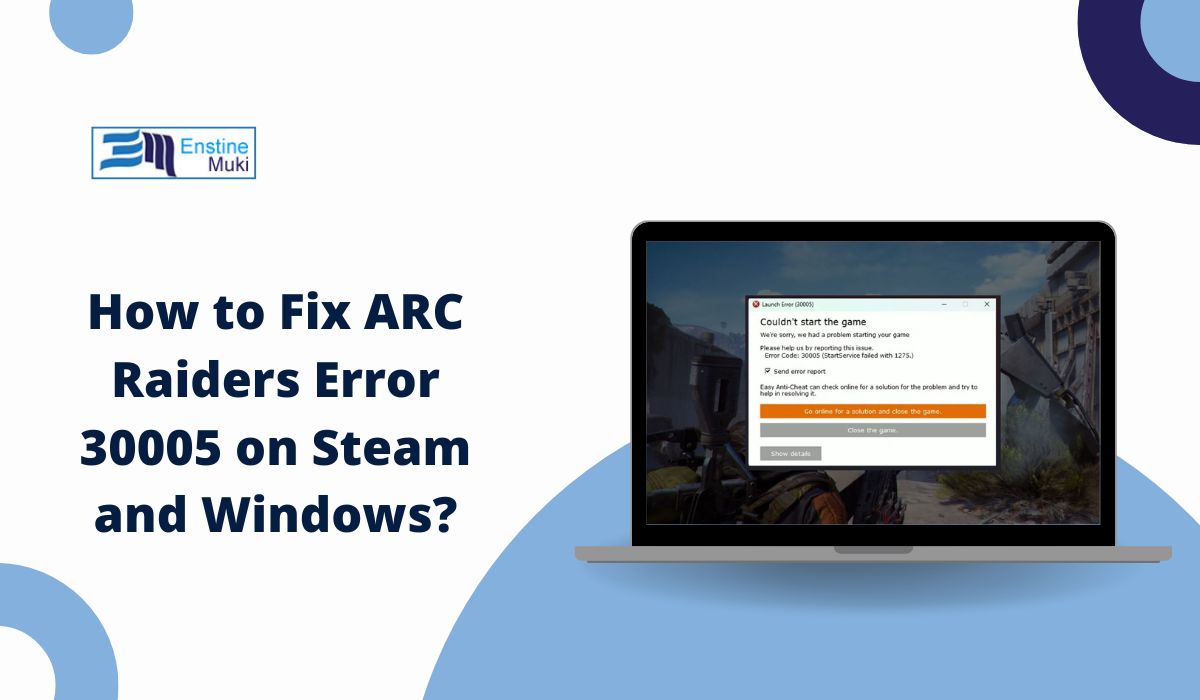
You are trying to launch the ARC Raiders game, and suddenly the game shows an Error Code 30005. The game won’t load or start. That feels annoying, especially when you just want to play. This error usually links to Easy Anti-Cheat and Windows security settings. But don’t worry.
In this guide, you’ll learn what this error means, why it appears, how to fix it step by step, and how to stop it from coming back.
What Is ARC Raiders Error Code 30005?
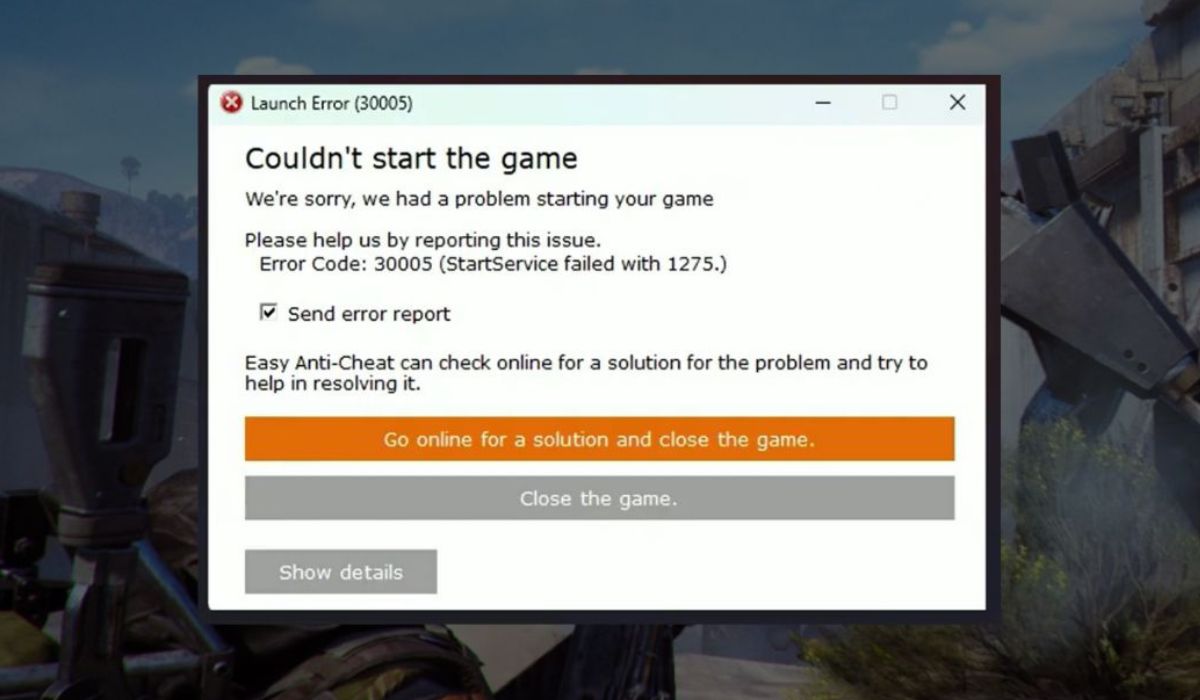
ARC Raiders Error Code 30005 is a startup error connected to Easy Anti-Cheat, the security system used by ARC Raiders. Easy Anti-Cheat checks your system before the game launches. It looks at Windows 10 or Windows 11 settings, Secure Boot status, and driver integrity. If something fails during that check, the anti-cheat service stops the game from opening. This protects online matches and servers managed by Embark Studios and published by Nexon. When the system cannot verify trust, it blocks access.
Most players see this error when launching ARC Raiders through Steam or Epic Games Launcher. A small Easy Anti-Cheat window may appear first, then the error message pops up and closes the game.
Common Causes of ARC Raiders Error Code 30005
This error can happen for several reasons. Sometimes Windows security blocks a file. Sometimes the game files get corrupted. Other times, BIOS settings like Secure Boot are disabled.
Below are the most common causes you should check:
- Corrupted Easy Anti-Cheat installation files
- Secure Boot disabled inside BIOS
- Outdated Windows system updates
- Windows Defender or third-party antivirus blocking EAC
- Damaged ARC Raiders game files on SSD or HDD
- Outdated NVIDIA or AMD graphics drivers
- Overlay apps like Discord Overlay or MSI Afterburner interfering
How to Fix ARC Raiders Error Code 30005?
Fixes can vary depending on your system setup. In most cases, the issue connects to permissions or corrupted files. However, if basic steps fail, you may need to adjust BIOS settings. Start from the top. Move step by step.
Fix #1: Restart Your PC
Sometimes Windows services fail to load properly. Easy Anti-Cheat may not start correctly during boot.
Try these simple steps to quickly restart your system:
- Close ARC Raiders completely
- Click Start
- Select Restart
- Wait for Windows to load fully
- Launch the game again from Steam
If the issue was temporary, the game should open normally.
Fix #2: Run ARC Raiders as Administrator
Easy Anti-Cheat needs full system access. Without admin rights, Windows may block it.
Here are the following steps which help you to run the game as administrator:
- Right-click the ARC Raiders shortcut
- Select Properties
- Open the Compatibility tab
- Check Run this program as administrator
- Click Apply
- Launch the game
This allows EAC to access protected files.
Fix #3: Verify Game Files
Corrupted files often trigger Error 30005. Steam and Epic Games Launcher both provide file verification tools.
Follow the steps below to easily verify game files on Steam:
- Open Steam
- Go to Library
- Right-click ARC Raiders
- Click Properties
- Select Installed Files
- Click Verify integrity of game files
For Epic Games Launcher:
- Open Epic Games Launcher
- Go to Library
- Click the three dots next to ARC Raiders
- Select Verify
The launcher will re-download missing or damaged files.
Fix #4: Repair Easy Anti-Cheat
If the anti-cheat installation itself is broken, repairing it helps. You can perform the following steps to repair Easy Anti-Cheat:
- Open the ARC Raiders installation folder
- Find the EasyAntiCheat folder
- Run EasyAntiCheat_Setup.exe
- Select ARC Raiders
- Click Repair Service
- Restart your PC
After restart, try launching again.
Fix #5: Add ARC Raiders to Antivirus Exclusions
Windows Defender or other antivirus programs may block Easy Anti-Cheat. Below are the steps that will guide you to add an exclusion:
- Open Windows Security
- Click Virus and Threat Protection
- Select Manage Settings
- Scroll to Exclusions
- Add the ARC Raiders folder
- Restart your PC
This prevents false detection.
Fix #6: Update NVIDIA or AMD Drivers
Old GPU drivers sometimes fail signature validation required by Easy Anti-Cheat. Driver mismatch can cause startup errors.
The following steps will show you how to update your GPU driver properly:
- Press Windows + X
- Open Device Manager
- Expand Display Adapters
- Right-click your NVIDIA or AMD card
- Click Update driver
- Select Search automatically
You can also download drivers directly from NVIDIA or AMD official websites.
Fix #7: Enable Secure Boot in BIOS
Secure Boot helps Windows verify trusted software. Easy Anti-Cheat depends on it, especially on Windows 11 systems.
Perform the following steps carefully to enable Secure Boot:
- Restart your PC
- Press F2, F10, or Delete to enter BIOS
- Find the Boot section
- Locate Secure Boot
- Enable it
- Save changes and exit
After Windows loads, launch ARC Raiders again.
Fix #8: Reinstall ARC Raiders Completely
If none of the above fixes work, deep file corruption may exist. A clean reinstall removes damaged system links.
These are the exact steps you need to follow to reinstall the game successfully:
- Open Steam or Epic Games Launcher
- Uninstall ARC Raiders
- Restart your PC
- Install the game again
- Launch after installation completes
A fresh install rebuilds the Easy Anti-Cheat service.
Prevention Tips to Avoid Error Code 30005 in Future
Prevention reduces frustration and game downtime. Keep your system stable. Maintain your drivers and security settings.
Here are some helpful tips that you can follow:
- Keep Windows 10 or Windows 11 updated
- Keep Secure Boot enabled in BIOS
- Update NVIDIA or AMD drivers regularly
- Avoid third-party overlays while gaming
- Add ARC Raiders to antivirus exclusions
- Restart your PC after major Windows updates
- Do not modify or tamper with game files
Conclusion
In short, ARC Raiders Error Code 30005 happens when Easy Anti-Cheat cannot verify your system. Secure Boot settings, corrupted files, antivirus conflicts, and outdated drivers are common triggers. Most players fix the issue using simple steps like restarting, verifying files, or repairing the anti-cheat service. Advanced fixes like enabling Secure Boot solve deeper conflicts.
If the problem continues after trying all steps, contact Embark Studios support through official channels. Keep your system updated and secure. And if this guide helped you, share it with other ARC Raiders players and drop your experience in the comments.