


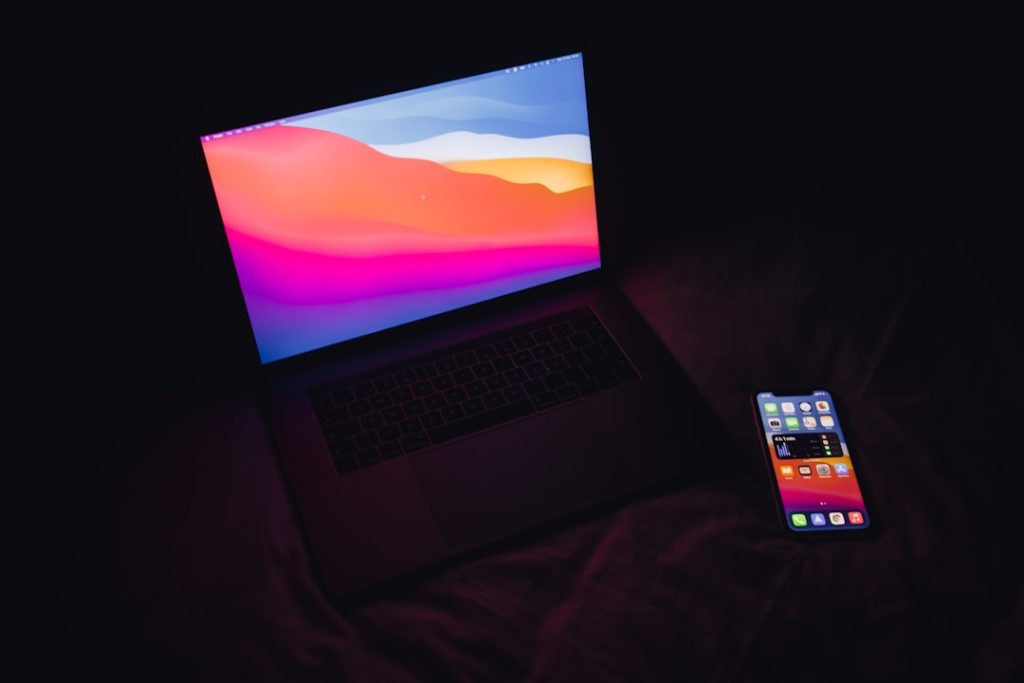
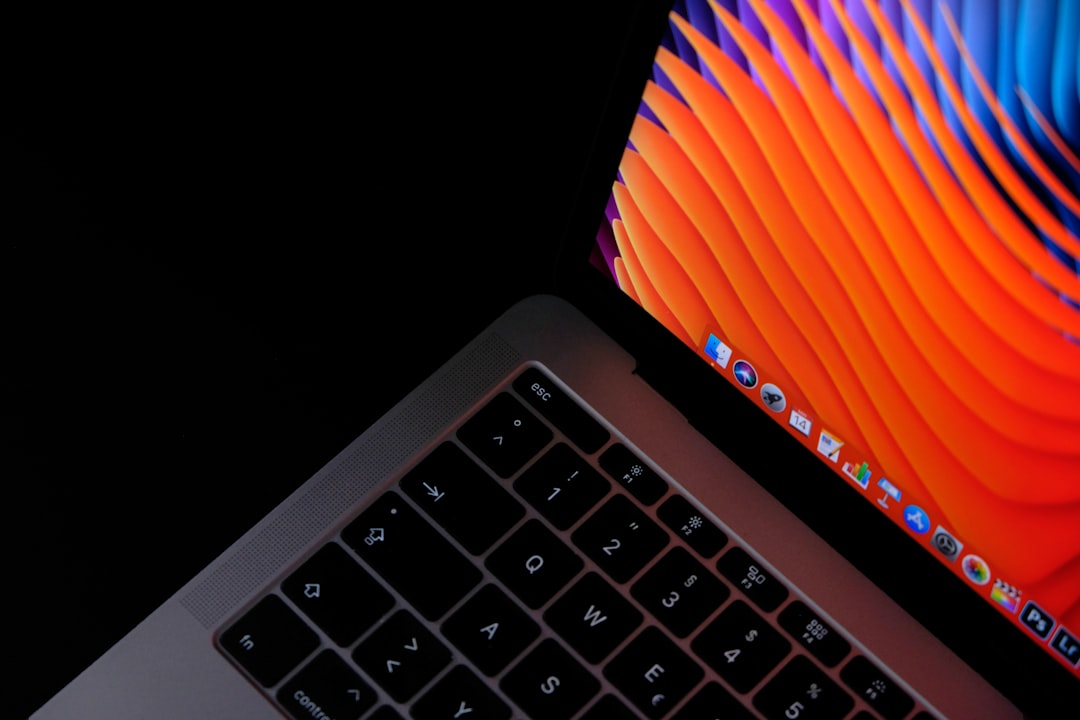
MacBook users generally expect seamless updates and high reliability from their devices. However, following system updates, some users have been confronted with an alarming issue — an orange screen display. This unexpected problem can affect productivity and cause concern about device integrity, especially if the screen remains orange at startup or during operation. Understanding the root causes and available solutions can help restore normal performance and prevent future issues.
TL;DR
If your MacBook Pro shows an orange screen after a system update, don’t panic. It’s likely related to software glitches, driver mismatches, or display hardware issues caused by the macOS upgrade. Most problems can be solved through safe boot, reset commands, or a supplemental update from Apple. In more complex scenarios, a professional diagnostic may be necessary.
What Causes the Orange Screen Issue?
When users see an orange screen, it can stem from multiple factors. Identifying the cause is the first crucial step toward resolving it. Below are the most common reasons:
- macOS Update Conflicts: After an update, certain older MacBook Pro models may experience incompatible firmware or driver issues that interfere with display settings.
- External Display Issues: Users relying on external monitors may see an orange hue if the monitor’s color profile becomes corrupted or if HDR settings are enabled improperly.
- Graphics Processing Unit (GPU) Problems: M1 and Intel-based Macs handle graphics differently. A miscommunication between macOS and GPU functions can lead to screen color anomalies.
- Third-Party Software Conflicts: Apps controlling screen tint, filters, or color temperature (such as f.lux) may not be compatible with the latest macOS version.
- NVRAM or SMC Malfunctions: These low-level controllers can store incorrect data after an update, affecting brightness, screen calibration, and system behavior.

Immediate Steps to Resolve the Issue
Several quick actions can potentially return your MacBook to its normal display. Try each step in order to determine whether the issue resolves.
1. Safe Mode Startup
Safe Mode restricts macOS to its essential functions, which can help isolate issues caused by third-party drivers or extensions.
- Shut down your MacBook completely.
- Turn it on and immediately press and hold Shift.
- Once you see the login window, release Shift and log in.
- If the display is normal, restart the Mac normally to see if the issue persists.
2. Reset NVRAM and SMC
Resetting these components can clear stored data affecting display or performance:
Reset NVRAM (For Intel Macs):
- Turn on the Mac and immediately press Option + Command + P + R.
- Hold for about 20 seconds, then release.
Reset SMC (For Intel Macs):
- Shut down the MacBook.
- Press Shift + Control + Option + Power button simultaneously for 10 seconds.
- Release all keys and power on your Mac as usual.
For Apple Silicon Macs (M1 and newer), simply shutting down the Mac for 30 seconds will automatically reset related settings.
3. Disconnect External Displays
If the issue began after connecting an external monitor, unplug the device and restart your Mac. An incompatible HDR setting or color profile might be affecting the internal display too.
4. Reinstall macOS
In cases where the system files may have been corrupted, reinstalling macOS can fix underlying problems:
- Boot into Recovery Mode by holding Command + R during startup.
- Select Reinstall macOS and follow on-screen prompts.
- Ensure your data is backed up before proceeding.
5. Check for Supplemental Updates
Apple often releases follow-up patches after a major macOS update. You can check for them by going to:
System Settings > General > Software Update
If a patch or fix is available, install it and restart your system to see if the orange tint issue is resolved.
Persistent Orange Screen? Here’s What Else to Try
If typical solutions don’t fix the display, you may be facing a deeper issue. These additional efforts often require more time or technical expertise.
1. Check Display Profiles
Sometimes, macOS selects an incorrect color profile after an update. You can manually adjust this:
- Open System Settings > Displays > Color Profile.
- Choose sRGB IEC61966-2.1 or Apple RGB for a more balanced color output.
2. Run Apple Diagnostics
This built-in tool will help determine if a hardware issue is involved:
- Shut down your MacBook.
- Turn it on and hold the D key until Apple Diagnostics begins.
- Follow the onscreen instructions and take note of any error codes presented.

3. Boot from External Drive
Sometimes, testing your Mac using an external macOS installation can determine if the internal system files are the cause.
- Create a bootable macOS USB drive using another Mac.
- Boot your MacBook from this USB (hold Option key at startup).
- If the display is normal, reinstalling macOS could fix the issue permanently.
4. Visit an Apple Store or Authorized Repair Center
If you’ve exhausted software fixes and still see an orange display, your MacBook might have a GPU or display hardware problem. In such cases, professional diagnosis and repair are recommended, especially if the device is under warranty or AppleCare+.
Preventing Future Screen Issues
While some problems are unavoidable, taking the following steps can lower the likelihood of facing unusual display symptoms after updates:
- Backup before updating: Always keep a Time Machine or cloud backup before installing major macOS updates.
- Delay updates: Allow time for early adopters to report bugs before updating your own device.
- Remove modification apps: Uninstall third-party software that alters display behaviors before upgrading the OS.
- Keep external accessories updated: Ensure monitors and drivers are compatible with the newest macOS version.
FAQ: MacBook Pro Orange Screen After Update
- Q: Is the orange screen a hardware issue?
- A: Not always. Often it is a software issue after an update, but if persistent, it could indicate GPU or display failure.
- Q: Can third-party apps like f.lux cause screen tint problems?
- A: Yes. Apps that control color temperature or night light settings may interfere with macOS’s own systems post-update.
- Q: Will reinstalling macOS delete all of my files?
- A: Normally, reinstalling through Recovery does not delete files, but it’s wise to back up your data beforehand.
- Q: Can the issue fix itself over time?
- A: Sometimes minor glitches resolve after additional patches or a few system restarts, but consistent color issues should be addressed immediately.
- Q: What if Safe Mode doesn’t fix it?
- A: Try additional steps like resetting NVRAM/SMC or checking color profiles. If that fails, seek professional help.
Staying informed and proactive can save you from unnecessary stress and ensure your MacBook Pro continues to function as a reliable workhorse.