


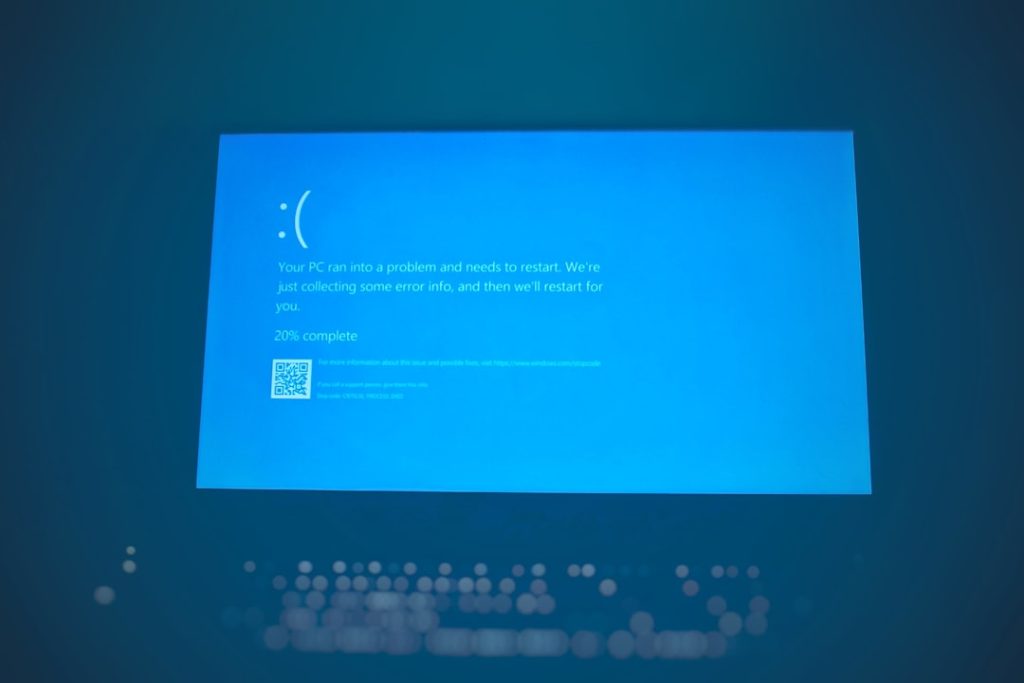
Stellar Blade is one of those games that pulls you in with amazing visuals and thrilling gameplay. But just when you’re about to hit “Start Game,” you’re greeted with a big, scary error: “Failed to load ue4ss.dll”. What now? Panic? Rage-quit? Don’t worry—we’ve got your back!
TL;DR
If you’re seeing the “Failed to load ue4ss.dll” error in Stellar Blade, it means a core file the game needs is missing or broken. This usually happens due to mod conflicts, corrupted files, antivirus software, or incomplete installations. Fixing it is easy and involves reinstalling DLL files, checking your game folders, or adjusting security settings. Let’s break it down step-by-step and get you back into action fast.
What is ue4ss.dll, Anyway?
The file ue4ss.dll stands for Unreal Engine 4 Scripthook Dynamic Link Library (phew, that’s a mouthful). Basically, it’s a tiny but critical code file that lets the game run mods or scripts smoothly. When this file is broken, missing, or incompatible, the game freaks out and shows that error message instead of launching.

Causes of the Error
There are a few usual suspects behind this error:
- Missing or deleted DLL file – Sometimes your antivirus gets overly excited and removes it.
- Mod conflicts – Installed mods don’t always play nicely with each other.
- Corrupt game files – Files can get scrambled during download or installation.
- Incorrect game path – Mod loaders placed in the wrong folder cause issues.
Now, Let’s Fix It!
Here’s a step-by-step guide to squash this error and get back into the game.
1. Restart Your PC
Yup, the classic “turn it off and on” trick. Sometimes that’s all it takes to clear temporary file hiccups.
2. Check Your Antivirus Software
Sometimes your security software thinks the ue4ss.dll is a threat and quarantines it.
- Open your antivirus software.
- Check the quarantine or protection history.
- Look for anything mentioning ue4ss.dll.
- Restore the file if it was mistakenly removed.
You should also consider adding exceptions or whitelisting your Stellar Blade directory to prevent this in the future.
3. Verify Game Files (Steam/Epic Games)
If you’re playing through a launcher like Steam or Epic, here’s what to do:
For Steam:
- Open your Steam library.
- Right-click Stellar Blade → Go to Properties.
- Select Installed Files → Click Verify integrity of game files.
For Epic Games:
- Open the Epic Games Launcher.
- Go to your library, find Stellar Blade.
- Click on the three dots and select Verify.
This makes the launcher scan and redownload any corrupt or missing files—including that pesky dll!
4. Reinstall or Update Mod Loader (UE4SS)
If you’re using mods, this is a big one. The UE4SS mod loader might be outdated or incorrectly installed.
Here’s how to fix it:
- Go to the source you downloaded the mod loader from, like GitHub or NexusMods.
- Download the latest version of UE4SS.
- Extract the files into the correct game directory:
Stellar Blade → Binaries → Win64 or wherever the game .exe is located. - Replace any old files when prompted.
Important: If the folder has multiple install paths (looking at you, modders), make sure it’s in the right one!
5. Manually Add the ue4ss.dll File
If the loader is missing that file totally, here’s what you can do:
- Download a clean copy of ue4ss.dll from a reliable source (check official mod repositories).
- Scan the file with antivirus before use!
- Copy the ue4ss.dll file into the appropriate folder, like:
…\Stellar Blade\Binaries\Win64\
Then try launching the game again. Fingers crossed!
6. Clean Reinstall the Game
If all else fails, this is your nuclear option.
- Uninstall Stellar Blade completely.
- Delete any leftover folders in your game install location.
- Reinstall the game fresh from your launcher.
- If you’re using mods, add them back one by one to see which one might cause issues.

Bonus Tips to Avoid Future Errors
Now that you’ve got it working, let’s keep it that way.
- Use version-matching mods. Always check mod versions before installing.
- Backup your game folder and save data before trying new mods.
- Update your graphics drivers regularly—DLL issues sometimes come from rendering problems too.
- Stay tuned to Stellar Blade communities. Forums and subreddits are goldmines for quick fixes.
Still Not Working?
If none of the steps fixed the problem, consider one of the following:
- Join the game’s Discord or Reddit for help from others who’ve faced the same issue.
- Create a support ticket with the developer or mod author.
- Try running the game in admin mode by right-clicking the executable and selecting Run As Administrator.
Wrapping Things Up
Errors like “Failed to Load ue4ss.dll” look frightening at first, but they’re quite fixable. Whether it’s a rogue mod, a missing file, or an overactive antivirus, taking the right steps can get you back into the awesomeness that is Stellar Blade.
Hopefully, you’ve now got the game working and you’re ready to slash up some enemies in style. Happy gaming!