


The Nintendo Switch has become one of the most beloved gaming consoles in recent years, offering a unique hybrid design for on-the-go and home gaming. However, users sometimes encounter annoying issues that interrupt gameplay. One such problem is the infamous “The software was closed because an error occurred” message. This error can pop up unexpectedly and affect specific games or apps, making it essential for users to understand how to fix it and prevent it from happening again.
TLDR (Too Long; Didn’t Read):
If you see the “The software was closed because an error occurred” message on your Nintendo Switch, don’t panic. Common solutions include restarting the device, checking for system and game updates, and clearing corrupted data. Other methods involve reinstalling the game or resetting the Switch software without wiping saved data. Read on for a complete troubleshooting guide.
What Causes the Nintendo Switch Software Closed Error?
This error typically occurs when the console is unable to continue running a particular game or application. Several factors can contribute:
- Corrupted game data or save files
- Software bugs or unpatched game code
- System software glitches
- Overheating or hardware limitations
- Faulty SD cards or corrupt memory
Identifying the root cause helps determine which fix is most appropriate.
Step-by-Step Guide to Fix the Error
1. Restart Your Nintendo Switch
Sometimes, a simple restart is all it takes to resolve temporary glitches.
- Hold the power button for about 3 seconds.
- Select Power Options from the menu.
- Tap Restart.
If that doesn’t work, perform a complete shutdown, wait for 30 seconds, and power it back on.
2. Check for Software Updates
Outdated firmware and games might contain bugs that could cause this error. Always ensure your device and games are up-to-date.
To update the system:
- Go to System Settings > System.
- Select System Update and let it check and install updates.
To update a game:
- Highlight the game on the home screen.
- Press + or – to access the options.
- Select Software Update > Via the Internet.
3. Clear Corrupted Data
Corrupted game files are a common cause of this error. Here’s how to erase them safely:
- Go to System Settings > Data Management.
- Select Software, then choose the game causing the issue.
- Tap Check for Corrupt Data.
If any files are found to be corrupted, the Switch will guide you through fixing them.
4. Reinstall the Problematic Game
If the integrity check doesn’t help, uninstalling and reinstalling the game might resolve the issue.
- Go to System Settings > Data Management > Software.
- Choose the game and select Delete Software.
- Download the game again from the Nintendo eShop or using your game card.
Note: Uninstalling software does not delete saved game data.
[h3>Insert Image Here: Game Reinstallation Process[/h3>

5. Test with Another Game
To figure out whether the error is limited to one game or system-wide, try playing a different title:
- If other games work fine, the problem likely lies with the specific game’s files or compatibility.
- If the error appears across multiple games, it could be a system or hardware issue.
6. Remove and Reinsert the Game Card (For Physical Copies)
If you’re using a game card, residue or poor contact might cause read errors.
- Power off the console.
- Remove the game card carefully.
- Clean it gently using a soft, dry cloth.
- Reinsert it and turn the Switch back on.
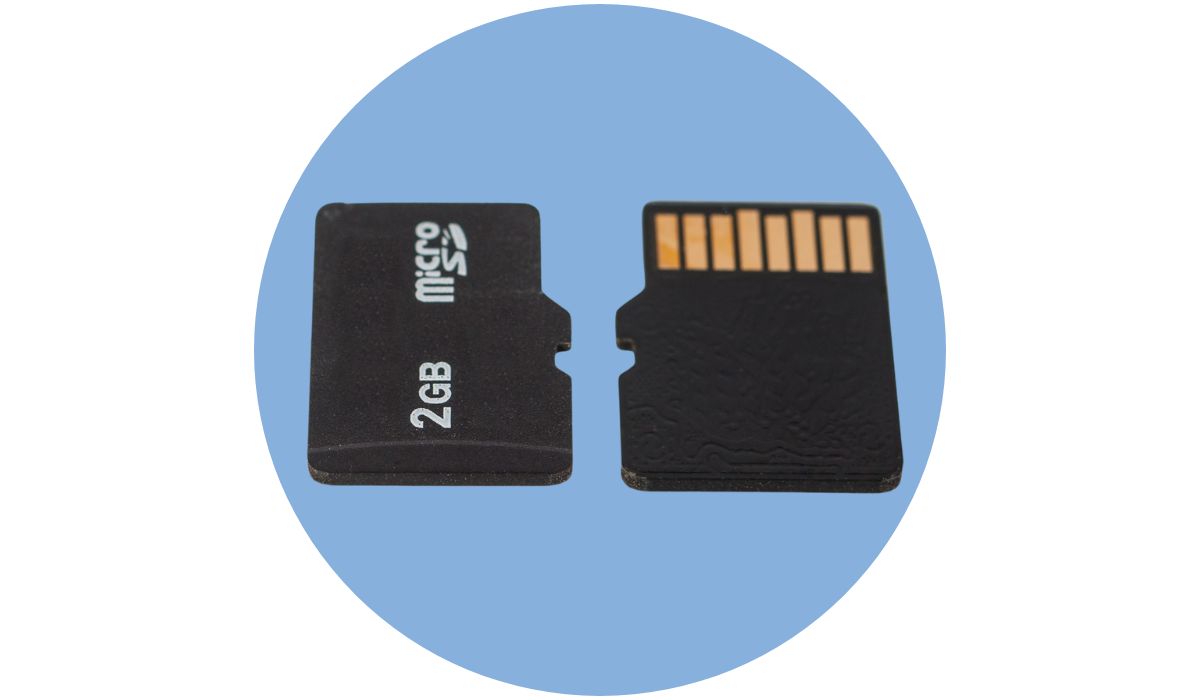
7. Adjust MicroSD Card
Errors can also stem from a faulty or incompatible SD card:
- Remove the SD card and try running the game from internal memory to see if the issue disappears.
- Inspect the card for defects and ensure it’s formatted correctly (FAT32 or exFAT).
Consider replacing the microSD card if errors persist when games are installed on it.

8. Reset Cache and Network Settings
Cache and network conflicts might cause software interruptions. You can reset these without affecting saved data:
- Go to System Settings > System > Formatting Options.
- Select Reset Cache or Reset Keyboard.
- Restart the device after the operation.
9. Perform a Soft Reset (Keep Save Data)
This option reinstalls the Switch’s OS while keeping personal data intact:
- Power off the console.
- Hold Volume Up + Volume Down then press Power to enter maintenance mode.
- Select Initialize Console Without Deleting Save Data.
This can fix persistent software-related issues without losing progress in games.
10. Contact Nintendo Support
If all else fails, the error may be due to a deeper hardware malfunction. Reach out to Nintendo Support or schedule a repair via their official website:
- Nintendo Support Website
- Use their repair request system for hardware diagnostics.
Frequently Asked Questions (FAQ)
Why do I keep seeing the software closed error on only one game?
This usually indicates a problem with that game’s data. It could be corrupted, outdated, or incompatible with your version of the system firmware.
Will I lose my save data if I delete and reinstall the game?
No. Deleting software from the Nintendo Switch does not remove saved game data unless you specifically delete it from Data Management.
Is this error related to internet connectivity?
In rare cases, yes. Online games or titles with cloud features may crash if the network connection is unstable. Resetting your router or switching to a wired connection can help.
Can a full storage drive cause this issue?
Yes. If your Switch’s internal storage or SD card is full, it may affect game functionality and cause crashes. Try deleting unused software or media to free up space.
Should I factory reset my Switch?
It’s a last resort. If none of the above steps resolve the issue, a full reset could be necessary—but remember to back up your save data to the cloud or via a PC before doing so.
In conclusion, while the Nintendo Switch software closed error can be frustrating, it is usually solvable with a bit of troubleshooting. Whether it’s a quick restart or a deeper diagnosis involving reinstalling the game or checking your memory card, taking the right steps can ensure your gaming experience isn’t interrupted for long.