


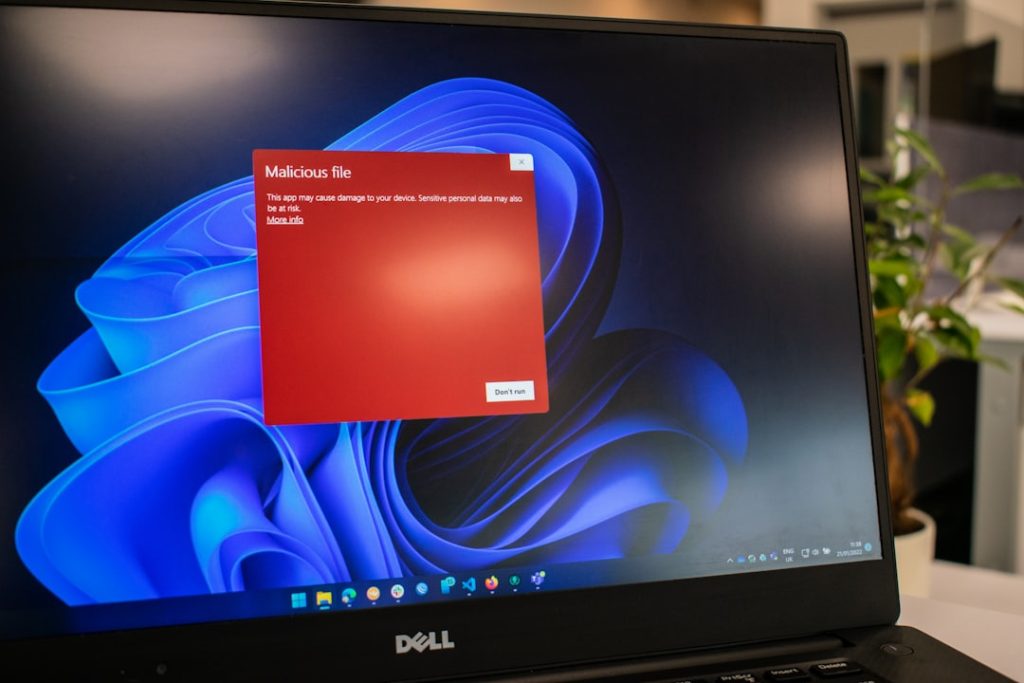
Running into the “Model Details Error: Fetch Failed” message in LM Studio can be frustrating, especially when you’re eager to test or deploy a local large language model. This error typically appears when LM Studio cannot retrieve model metadata from its remote repository, leaving you unable to download, update, or view important model information. While the message may seem vague, the root causes are usually straightforward: network instability, firewall conflicts, incorrect proxy settings, or corrupted configuration files.
TLDR: The “Fetch Failed” error in LM Studio usually happens because the app cannot reach its model repository server. Start by checking your internet connection, firewall, VPN, and proxy settings. If that doesn’t work, clear LM Studio’s cache, update the app, or reinstall it. Most users can resolve the problem in under 15 minutes with basic troubleshooting steps.
What Causes the “Fetch Failed” Error?
Before jumping into fixes, it helps to understand why LM Studio throws this error in the first place. When you browse models inside the app, LM Studio sends a request to an online repository to retrieve model information such as:
- Model size and architecture
- Quantization types
- Download links
- Version details
If that request fails, the application has nothing to display—hence the error message.
Common causes include:
- Unstable or disconnected internet
- Firewall or antivirus blocking outbound connections
- VPN or proxy conflicts
- Server downtime
- Corrupted cache or configuration files
- Outdated LM Studio version
The good news? Almost all of these are fixable without advanced technical skills.
Step 1: Check Your Internet Connection
This may sound obvious, but even a partially working internet connection can break API requests. LM Studio needs stable outbound HTTPS access to fetch model data.
Start by:
- Opening a browser and visiting several websites
- Restarting your router
- Switching from Wi-Fi to wired Ethernet (if possible)
- Testing with your phone hotspot to rule out network issues
If the error disappears when using a different network, your original connection is likely blocking LM Studio traffic.

Step 2: Disable Firewall or Antivirus Temporarily
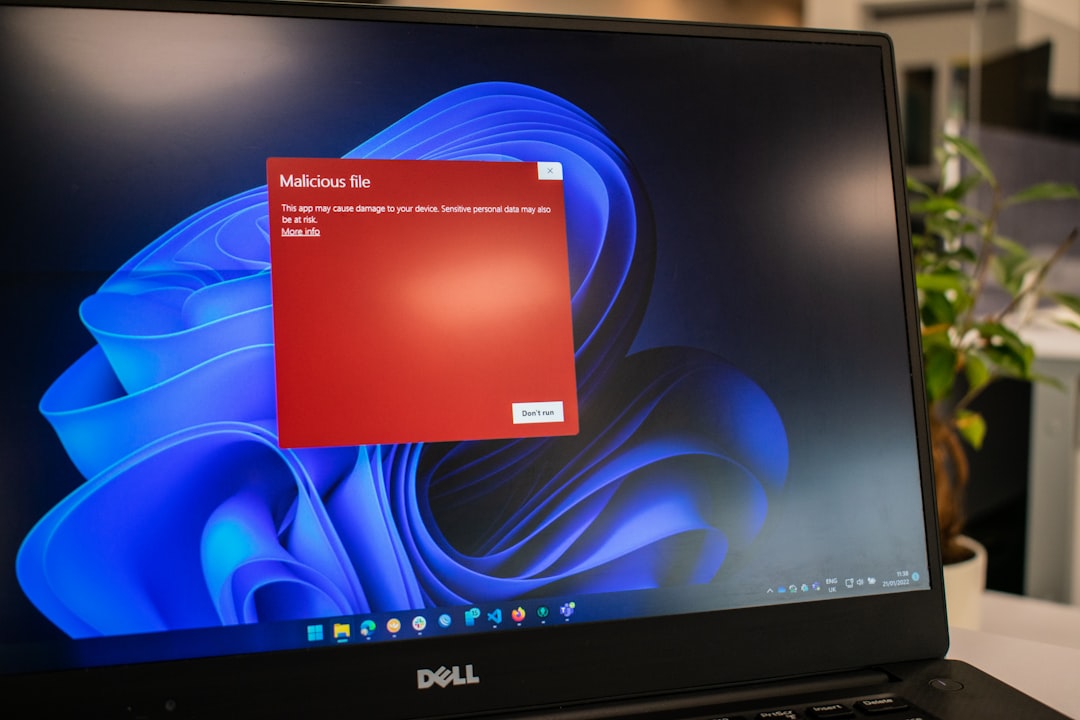
Security software is one of the most common causes of “Fetch Failed” issues. Firewalls and antivirus tools sometimes misinterpret LM Studio’s outbound requests as suspicious activity.
To test this:
- Temporarily disable your antivirus.
- Turn off your firewall briefly.
- Relaunch LM Studio and try fetching model details again.
If the problem resolves, add LM Studio to your software’s allowed apps or exceptions list. This way, you can re-enable protection without breaking functionality.
Tip: On Windows, check both Windows Defender Firewall and third-party antivirus tools. On macOS, review System Settings → Network → Firewall.
Step 3: Check VPN and Proxy Settings
If you’re using a VPN or proxy server, this could interfere with LM Studio’s ability to reach its repository server.
Try these fixes:
- Disconnect your VPN temporarily.
- Switch to a different VPN location.
- Disable any custom proxy configuration.
- Ensure your system proxy settings match your network setup.
Some corporate networks enforce strict proxy rules that block developer tools or AI-related endpoints. If you’re on a work machine, you may need IT approval.
Step 4: Verify LM Studio Server Status
Occasionally, the issue isn’t on your side at all. If LM Studio’s model repository server is down or undergoing maintenance, fetch requests will fail globally.
You can:
- Check LM Studio’s official community channels
- Look for user reports about outages
- Wait 10–30 minutes and try again
Server outages are rare but not impossible—especially following major updates.
Step 5: Clear LM Studio Cache
Corrupted cache files can prevent proper communication with the model repository. Clearing the app’s cache often resolves mysterious errors.
To do this:
- Close LM Studio completely.
- Navigate to its local configuration or cache folder (usually inside your user directory).
- Delete temporary cache files.
- Restart the application.
Be cautious not to delete downloaded models unless you intentionally want to remove them.
Image not found in postmetaStep 6: Update LM Studio
If you’re running an older version of LM Studio, compatibility issues might be triggering the error. Repository endpoints and APIs can change over time.
To update:
- Visit the official LM Studio download page.
- Download the latest release.
- Install it over your current version (or uninstall first if necessary).
Newer versions often include:
- Bug fixes
- Improved error handling
- Updated repository integration
- Performance enhancements
After updating, restart your system before testing again.
Step 7: Flush DNS Cache
Sometimes DNS resolution issues prevent LM Studio from reaching its server, even if websites load correctly in your browser.
Here’s how to flush DNS:
On Windows:
- Open Command Prompt as Administrator.
- Type: ipconfig /flushdns
- Press Enter.
On macOS:
- Open Terminal.
- Type: sudo dscacheutil -flushcache; sudo killall -HUP mDNSResponder
- Press Enter.
This refreshes your system’s DNS records and can resolve hidden name resolution problems.
Step 8: Reinstall LM Studio
If none of the above methods work, a clean reinstall may be necessary.
Recommended steps:
- Uninstall LM Studio.
- Delete remaining configuration folders.
- Restart your computer.
- Download and install the latest version.
A fresh install removes corrupted config files that might be blocking API calls.

Advanced Troubleshooting (For Technical Users)
If you’re comfortable with diagnostics, you can dig deeper.
Check Logs
LM Studio logs may show specific network errors such as:
- ECONNREFUSED
- ETIMEDOUT
- ERR_PROXY_CONNECTION_FAILED
These codes reveal whether the issue is firewall-related, server-related, or proxy-based.
Test API Access Directly
You can use a browser or command-line tool to attempt accessing the repository endpoint. If the endpoint fails outside of LM Studio, the problem is definitely network-related.
Adjust Corporate Network Restrictions
Some enterprise networks block large file repositories or AI-related servers. Switching to a home network usually resolves this instantly.
Preventing the Error in the Future
Once you’ve fixed the problem, consider taking these preventive steps:
- Keep LM Studio updated.
- Maintain stable internet connectivity.
- Avoid aggressive firewall rules.
- Document any custom proxy configurations.
- Monitor system security updates.
Proactive maintenance minimizes future interruptions.
Why This Error Isn’t as Serious as It Looks
The phrase “Fetch Failed” sounds dramatic, but it rarely indicates something catastrophic. Unlike corrupted models or GPU driver conflicts, this error typically involves communication issues—not data loss.
In most cases:
- Your downloaded models remain intact.
- Your local projects are unaffected.
- Your system configuration remains stable.
The issue is usually limited to retrieving new model details from the server.
Final Thoughts
Encountering the “Model Details Error: Fetch Failed” message in LM Studio can interrupt your workflow, but it’s almost always solvable with systematic troubleshooting. Start simple—check your internet and firewall—then progress to cache clearing, updates, and reinstalling if necessary.
Most users fix the issue within minutes once they pinpoint the root cause. And if you’re working in a restricted or corporate network, switching to a personal connection often resolves the problem instantly.
With the right approach, you’ll be back to exploring and running local models smoothly—without that frustrating fetch error holding you back.