


If you’re an avid Fortnite player, there’s a good chance you’ve encountered some peculiar error messages while trying to launch or update the game. One such frustrating and confusing issue is the IoStore.Signature_Error: Pak is invalid. This error typically shows up during game launch, preventing players from accessing their favorite battle royale experience. But don’t worry—this guide will walk you through what causes this issue, and more importantly, how to effectively fix it.
TL;DR (Too Long; Didn’t Read)
The IoStore.Signature_Error: Pak is invalid in Fortnite usually occurs when one or more game files are corrupted, missing, or altered. This may be caused by interrupted updates, third-party interference, faulty storage, or network issues. The easiest fix is to verify game files through the Epic Games Launcher and update corrupted or missing files. If that doesn’t work, more advanced methods involving system checks and manual file removal might be necessary.
What Does the IoStore.Signature_Error: Pak is invalid Mean?
This specific error refers to a problem with Fortnite’s asset packages, commonly known as .pak files. These files contain critical game data such as textures, models, scripts, and more. When these are either incomplete or have failed an integrity check performed by the game launcher, the system flags them as invalid. The result is that Fortnite either crashes on startup or won’t load at all.

Common Causes of the Error
Understanding why this happens can help you choose the right fix. Here are some frequent culprits:
- Corrupted download: Loss of internet connection or interruptions during updates may corrupt some files.
- Installation on a failing drive: If the hard drive or SSD you installed Fortnite on has bad sectors, files may become unreadable.
- Third-party antivirus/firewalls: Some overprotective security tools can quarantine .pak files mistakenly.
- Manual modification: If you’ve tried to mod the game files—even accidentally—you may break critical file signatures.
- Lack of disk space: Insufficient space can lead to incomplete file extraction during game updates.
How to Fix IoStore.Signature_Error: Step-By-Step Solutions
Let’s walk through some tested methods to resolve this error. Try them in order for the best chance at success.
1. Verify Fortnite Game Files via Epic Games Launcher
This is the most straightforward and effective method.
- Open the Epic Games Launcher.
- Navigate to your Library.
- Click the three dots (…) next to Fortnite.
- Select Manage.
- Click Verify.
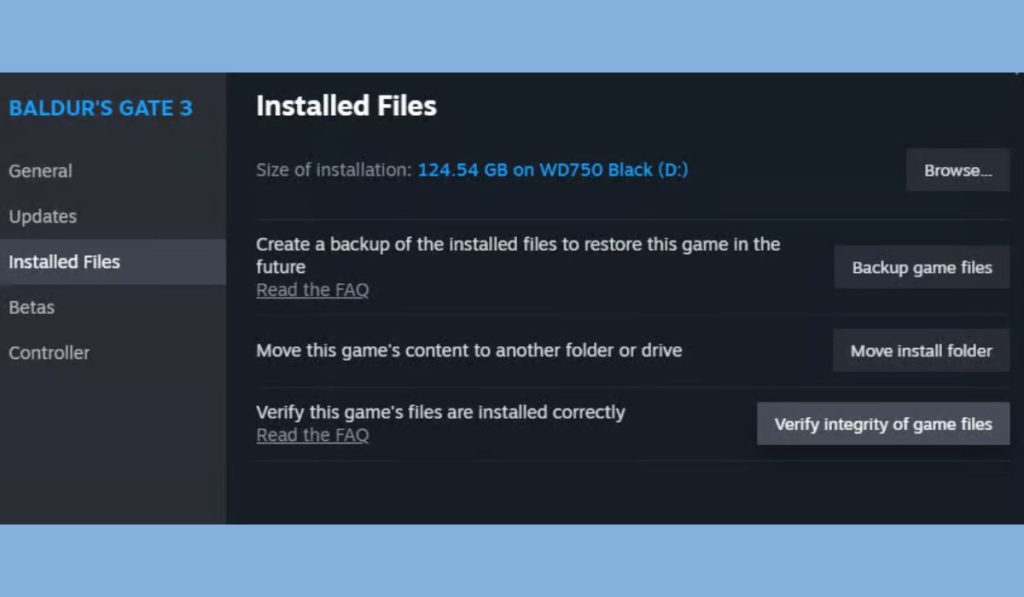
This process will examine all installed Fortnite files and automatically replace any that are missing or corrupted. It might take a while depending on your system and internet speed, but it’s usually worth the wait.
2. Delete and Redownload Affected .pak Files
If verifying doesn’t work, you can manually delete corrupted files and redownload them:
- Navigate to your Fortnite installation directory. The default path is usually:
C:\Program Files\Epic Games\Fortnite\FortniteGame\Content\Paks - Sort the folder by date modified to find recently changed .pak files.
- Identify and delete the suspect .pak files—especially ones that were mentioned in the error log (if available).
- Open the Epic Games Launcher and verify files again to initiate a safe re-download of the deleted ones.

3. Disable or Adjust Antivirus/Firewall Settings
Security software might misinterpret Fortnite’s .pak files as threats. Temporarily disable your antivirus or add Fortnite and the Epic Games Launcher as exclusions. Here’s how:
- Open your antivirus software settings.
- Navigate to Exclusions or Allow-list options.
- Add the following folders:
- Epic Games Launcher
- Fortnite Installation Folder
Restart your PC and try launching Fortnite again. Just be sure to re-enable your antivirus later to stay protected from actual threats.
4. Check for Drive Errors
Sometimes a faulty hard drive or SSD can cause read/write errors in game files. Here’s how to check:
- Press Windows + E to open File Explorer.
- Right-click the drive where Fortnite is installed.
- Select Properties > Tools > Check under Error checking.
- Allow Windows to scan and fix disk errors.
Once the disk check is complete, try verifying Fortnite’s files again and launch the game.
5. Use “sfc /scannow” to Repair System Files
If the issue still persists, there could be corrupted system files affecting Fortnite. This is especially likely if other applications are acting buggy.
- Open the Start Menu, type
cmd, and run Command Prompt as Administrator. - Type
sfc /scannowand press Enter. - Let the scan complete—it can take up to 15 minutes.
Once done, restart your PC and attempt to run Fortnite again.
Advanced Fix: Reinstall Fortnite
If none of the above work, it’s time to go for a clean reinstall. Although time-consuming, this method guarantees that all corrupt files are removed.
- Back up your in-game settings if needed.
- Open the Epic Games Launcher and uninstall Fortnite.
- Go to your installation directory and manually delete any leftover folders named Fortnite or Epic Games.
- Reboot your PC and reinstall Fortnite fresh from the Epic Games Launcher.
Preventing the Error in the Future
Once you’ve fixed the error, you’ll want to make sure it doesn’t happen again. Here are a few tips:
- Keep your system and drivers updated: Outdated graphics or storage drivers can cause instability.
- Maintain a stable internet connection: Avoid downloading updates on unstable or public Wi-Fi.
- Leave enough disk space: Try to keep 10–15% of your drive’s space free for optimal performance.
- Avoid manual tweaks or mods: Unless you’re sure what you’re doing, altering game files can trigger this error again.
Conclusion
While the IoStore.Signature_Error: Pak is invalid error can be irritating, it’s usually not too difficult to fix if you approach it methodically. Whether it’s simply verifying game files or digging a bit deeper into manual fixes and system tools, one of these steps is likely to solve the issue. With proper maintenance, you should be back to building forts and securing Victory Royales in no time.
Happy gaming!