


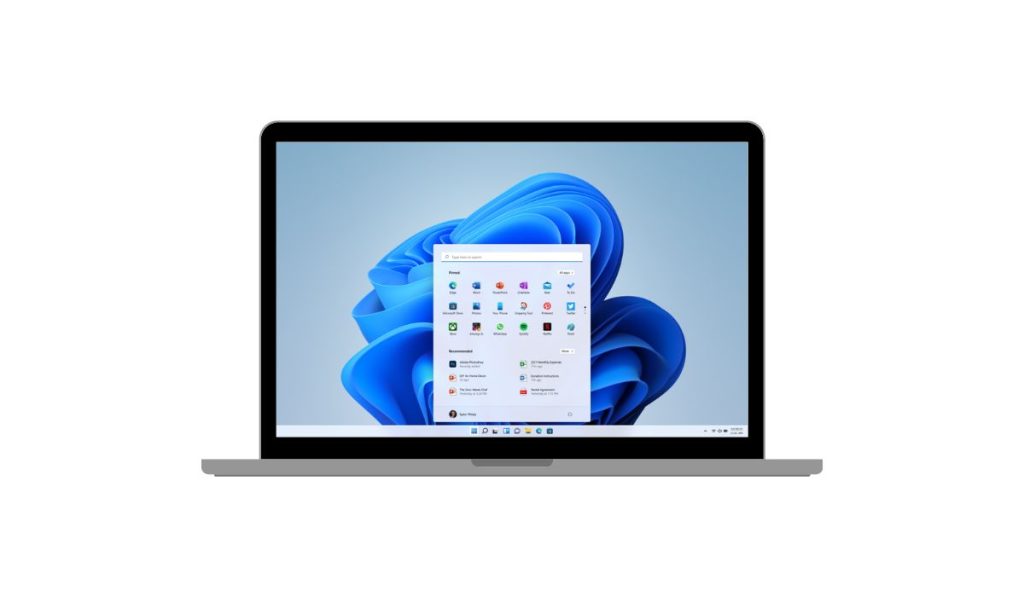
QuickBooks has become one of the most widely used accounting software tools among small and medium-sized businesses. From managing payroll and generating tax reports to handling expenses and invoices, QuickBooks simplifies complex financial processes. However, like all software, it may occasionally encounter performance issues or technical glitches. That’s where the QuickBooks Tool Hub comes in — a centralized platform designed to address a range of software problems. In this guide, users will learn how to download and install the QuickBooks Tool Hub on Windows 11 swiftly and correctly.
TL;DR — Quick Summary
If you’re experiencing issues with QuickBooks Desktop on your Windows 11 system, the QuickBooks Tool Hub is your go-to companion. This all-in-one service tool can fix installation errors, connection problems, login issues, and more. Downloading and installing it is simple, needing only a few minutes and minimal system requirements. Just head to the official Intuit website, download the latest version of the Tool Hub, and follow the setup wizard to install it.
What is QuickBooks Tool Hub?
The QuickBooks Tool Hub is a free, integrated utility by Intuit, meant to troubleshoot and repair common issues QuickBooks Desktop users face. It combines several diagnostic and repair tools under one roof, including:
- QuickBooks File Doctor – for company file issues
- Quick Fix My Program – for crashing or unresponsive QuickBooks
- Install Diagnostic Tool – for installation and update errors
- Network Issues Tool – for connection-related problems
- Password Reset Tool – to recover account access
This unified experience simplifies the process of maintaining healthy QuickBooks software and reduces downtime for businesses.
System Requirements for Installation
Before initiating the download, it’s essential to ensure that your Windows 11 PC meets the necessary requirements:
- Operating System: Windows 11 (64-bit recommended)
- .NET Framework: Version 4.7.2 or later
- Disk Space: At least 200MB free
- Internet Access: Required for download and certain tools
Also, make sure you’re logged in as an administrator to ensure smooth installation and avoid permission-related errors.
How to Download QuickBooks Tool Hub on Windows 11
Downloading the Tool Hub is a straightforward process and should take just a few minutes, depending on internet speed.
- Go to the official Intuit website by typing www.intuit.com into your browser.
- Navigate to the QuickBooks Support section or search for “QuickBooks Tool Hub.”
- Click on the latest version of the Tool Hub and press the “Download” button.
- Once downloaded, locate the file named QuickBooksToolHub.exe in your Downloads folder.

Ensure to download only from the official Intuit website to prevent any malware or phishing risks.
How to Install QuickBooks Tool Hub
After downloading the executable file, follow these steps to install it:
- Double-click on QuickBooksToolHub.exe to begin the setup.
- When prompted, click on Yes to allow changes to your system.
- Read and accept the license agreement by clicking on Next.
- Choose the installation location or leave it as default, then click Install.
- Wait for the installation to complete and then click Finish.
Once done, you can find the QuickBooks Tool Hub icon on your desktop. If not, use the Start menu to search and launch it.


How to Use QuickBooks Tool Hub
Using the Tool Hub is as simple as navigating through a user-friendly interface. Here’s what to expect:
- Open the QuickBooks Tool Hub from your desktop or Start menu.
- You’ll notice a side navigation bar with multiple tabs such as:
- Company File Issues
- Network Issues
- Program Problems
- Installation Issues
- Password Reset
- Select the option that corresponds with the problem you’re facing.
- Follow the on-screen prompts specific to that utility module.
Each module launches a specialized tool that targets the issue directly, making troubleshooting efficient and less time-consuming.
Why You Should Keep Tool Hub Updated
Intuit regularly updates the Tool Hub to support newer versions of Windows and QuickBooks software. These updates often come with:
- Improved performance and stability
- New diagnostic utilities
- Bug fixes for existing tools
- Enhanced compatibility with network and file systems
Check for updates within the Tool Hub interface and ensure you’re running the most recent version to get the best support.
Troubleshooting Common Issues During Installation
If you run into challenges during installation, consider these quick fixes:
- Installer won’t launch: Right-click on the .exe file and select ‘Run as Administrator’.
- .NET Framework errors: Download or enable the latest .NET Framework from Microsoft’s official website.
- Antivirus interference: Temporarily disable antivirus software during installation and re-enable afterward.
- Windows updates pending: Make sure Windows 11 is fully updated before installing the Tool Hub.
Running the installation in Safe Mode can also solve certain software conflicts that interfere with installation.
Benefits of Using QuickBooks Tool Hub
By installing the Tool Hub, users gain the ability to:
- Quickly fix installation and update errors
- Resolve company file and network issues with minimal technical knowledge
- Reset passwords without calling support
- Improve the overall performance of QuickBooks Desktop
These features can save both time and money, making the Tool Hub a crucial asset for every QuickBooks Desktop user.
FAQ (Frequently Asked Questions)
- Q: Is QuickBooks Tool Hub free?
A: Yes, it is a free utility provided by Intuit to all QuickBooks Desktop users. - Q: Can I use QuickBooks Tool Hub on Windows 10?
A: Absolutely. The Tool Hub is compatible with both Windows 10 and Windows 11, as well as older versions like Windows 8.1 (with limitations). - Q: Do I need to uninstall previous versions before installing the latest one?
A: No, the latest version will automatically update and replace your previous installation. - Q: Is QuickBooks Tool Hub available for Mac?
A: Currently, the Tool Hub is only available for Windows operating systems. Mac users need to seek alternative troubleshooting tools or rely on cloud-based versions of QuickBooks. - Q: How often should I use QuickBooks Tool Hub?
A: Use it whenever you encounter an error message or issue with QuickBooks Desktop. It’s meant for troubleshooting, not regular use.
With this guide, downloading and installing the QuickBooks Tool Hub on Windows 11 should now be a managed and hassle-free experience. Keeping this tool at your fingertips ensures smoother operation and quicker fixes for any QuickBooks-related setbacks.