


When your Nighthawk A9000 stops working, it feels annoying fast. One moment you have Wi-Fi, and the next moment the internet disappears. For many users, this adapter is the main way their PC connects online, so when it fails, everything stops. Sometimes the device does not show up at all. Other times it connects but gives no internet.
This guide explains what this problem means, why it happens with the Netgear Nighthawk A9000, and what usually causes it, so you can understand the issue before trying any solution.
What Is “Nighthawk A9000 Not Working”?
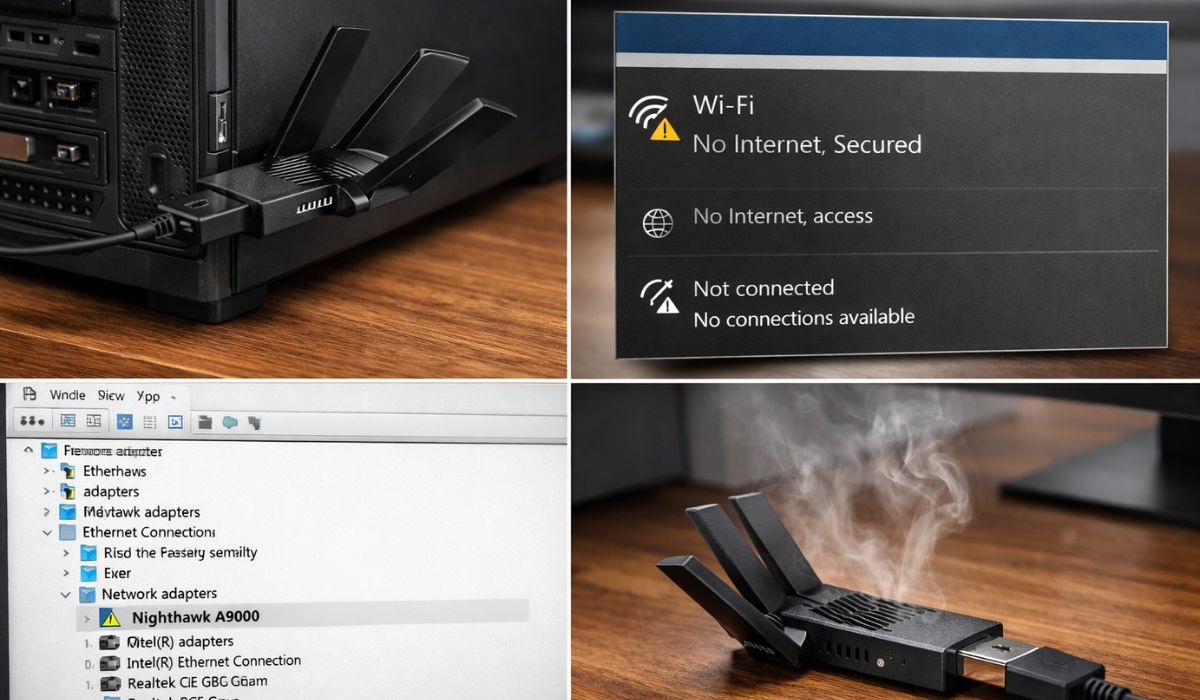
When people say the Nighthawk A9000 is not working, they usually mean the USB Wi-Fi adapter fails to connect properly. The computer may turn on and run fine, but wireless access does not work through the adapter. Sometimes the device does not appear in network settings at all. In other cases, it connects to a Wi-Fi network but shows no internet access. This issue means the system cannot send or receive wireless data through the adapter, even though other parts of the computer still function normally.
Most users notice this problem inside the Windows network menu or Device Manager. The adapter may show an error icon, appear disabled, or disappear after a system restart. In some cases, the Wi-Fi list stays empty even when nearby networks are active, which signals that the adapter is not communicating with the system correctly.
Common Causes of Nighthawk A9000 Not Working
This problem can happen for different reasons, depending on system updates, USB behavior, or network configuration. Some causes relate to software, while others come from power or hardware limitations. Understanding these reasons helps reduce trial and error and avoids replacing a working device too early.
Some common causes include:
- Missing or corrupted network driver that prevents detection
- USB port not supplying stable power to the adapter
- Windows updates causing driver compatibility issues
- Power-saving settings disabling the USB network adapter
- Router security or Wi-Fi band mismatch
- Adapter overheating during long use
- Internal hardware failure inside the adapter
How to Fix Nighthawk A9000 Not Working?
Wi-Fi adapter problems can come from drivers, USB power, system settings, or network mismatch. Because of this, one fix may work for one user but not for another. It is best to start with basic checks and move step by step.
Each fix below helps narrow down where the real problem is, instead of changing random settings.
Fix #1: Plug the Adapter into a Different USB Port
Sometimes the USB port does not supply enough power for the adapter to work correctly. This causes the device to disconnect or not appear at all.
Here are the following steps which help you to test another USB port.
- Unplug the Nighthawk A9000 from the current port
- Plug it into a different USB port on the computer
- Avoid using USB hubs or extensions
- Wait a few seconds for the system to detect it
- Check if Wi-Fi networks appear
If the adapter works in another port, the original port may be weak or faulty.
Fix #2: Reinstall the Nighthawk A9000 Driver
A broken or outdated driver is one of the most common reasons this adapter stops working. Without the correct driver, the system cannot communicate with the device.
Follow the steps below to easily reinstall the driver.
- Open Device Manager
- Find the network adapter entry
- Uninstall the Nighthawk A9000 driver
- Restart the computer
- Install the latest driver from Netgear official support
After reinstalling, the adapter should appear normally in network settings.
Fix #3: Check Device Manager for Disabled Adapter
Sometimes the adapter is detected but disabled by the system. This makes it look like the device is not working.
You can perform the following steps to check the adapter status.
- Open Device Manager
- Expand Network adapters
- Look for the Nighthawk A9000
- Right-click the device
- Enable it if the option is available
Once enabled, Wi-Fi networks should show again.
Fix #4: Disable USB Power Saving Settings
Windows may turn off USB devices to save power. When this happens, the adapter disconnects without warning.
Try these simple steps to quickly disable USB power saving.
- Open Device Manager
- Expand Universal Serial Bus controllers
- Open USB Root Hub properties
- Disable power saving options
- Restart the system
This allows the adapter to stay powered during use.
Fix #5: Reset Network Settings in Windows
Corrupted network settings can block internet access even when Wi-Fi connects. Resetting clears old configurations.
Below are the steps that will guide you to reset network settings.
- Open Windows Settings
- Go to Network and Internet
- Select Network reset
- Confirm the reset
- Restart the computer
After reset, reconnect to your Wi-Fi network.
Fix #6: Match Wi-Fi Band and Router Settings
The adapter may not connect if the router uses unsupported settings. Some routers separate 2.4 GHz and 5 GHz networks.
Here’s how you can check router compatibility in a few minutes.
- Log into your router settings
- Check Wi-Fi security type
- Enable WPA2 if possible
- Confirm 5 GHz band is active
- Reconnect the adapter
A mismatch here can cause no internet or constant drops.
Fix #7: Test the Adapter on Another Computer
This test helps confirm whether the issue is the adapter or the system. It removes guesswork.
If the adapter fails on another computer as well, hardware failure becomes more likely. If it works fine elsewhere, the issue is with system settings or drivers on the original PC.
Fix #8: Check for Hardware Failure or Replace the Adapter
If none of the fixes work, the adapter may be damaged internally. Overheating, age, or electrical damage can cause this. At this stage, software changes will not help. Replacing the adapter or contacting support is the safest option.
Prevention Tips to Avoid Nighthawk A9000 Issues in the Future
Wi-Fi adapter problems often return when small system warnings get ignored. A few basic habits can help keep the Nighthawk A9000 stable and reduce future disconnects. These steps focus on system health, power flow, and network consistency rather than advanced settings.
Here are some helpful prevention tips:
- Keep network drivers updated from official sources
- Avoid unplugging the adapter during updates
- Use USB ports directly on the motherboard
- Disable aggressive power-saving modes
- Keep the adapter cool during long sessions
- Restart the router and computer weekly
- Watch adapter behavior after system updates
Conclusion
In short, when the Nighthawk A9000 is not working, the issue usually relates to drivers, USB power delivery, system updates, or network settings. The computer itself may run fine, but wireless communication fails through the adapter. This makes the problem feel sudden, even though the cause often builds up over time.
Before replacing the adapter, it helps to understand what changed on the system and how the device behaves. Small checks can save time and money. If this article helped you understand the issue, consider sharing it with others or leaving a comment about what you experienced.