


It feels pretty frustrating when you try to save your art with a transparent background in ibis Paint, but the app gives you a plain white one instead. You expect a clean PNG with no background, yet something keeps blocking it. When this happens, it slows down your work and makes stickers, logos, or edits harder to use. This guide explains what the error means, why it happens, how you can fix it, and how to keep it from showing up again.
What Is the “ibis Paint Transparent Background Not Working” Error?
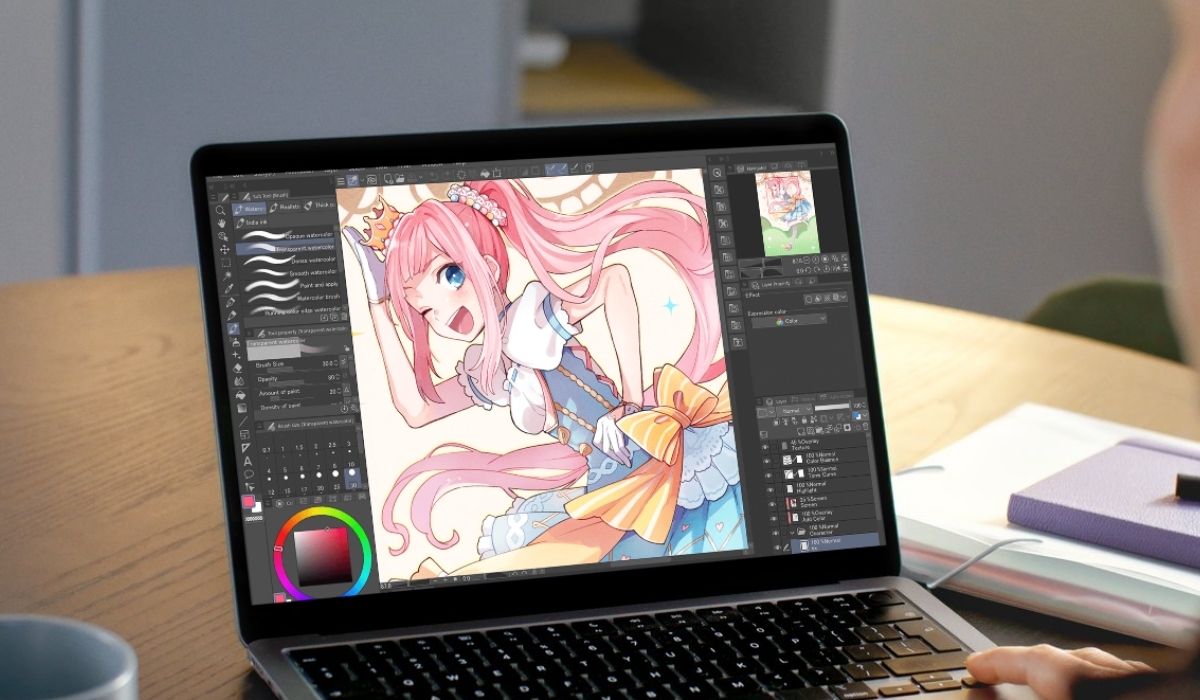
This error happens when ibis Paint fails to keep the alpha channel in your image. The canvas may look transparent in the editor because of the checkered pattern, but the exported picture loses that transparency and becomes white. This means a canvas setting, a hidden layer, or a file export step is getting in the way.
You will usually see this when exporting a PNG, saving the artwork to your gallery, or using the file inside another app. Sometimes the transparency disappears even though you erased the background. Other times the canvas itself is set to a solid color, so ibis Paint exports the wrong thing.
Common Causes of ibis Paint Transparent Background Not Working
This can happen for a few different reasons. Here are the most common causes:
- Saving the file as JPEG instead of PNG
- The default white background layer still visible
- Canvas set to a solid color instead of transparent
- Flattened layers removing transparency
- Erasing the background layer instead of deleting it
- Alpha lock blocking true pixel removal
- Phone gallery or file app converting PNG to JPEG without warning
How to Fix ibis Paint Transparent Background Not Working?
The right fix depends on what is causing the background to turn white. Try these nine fixes one at a time.
Fix #1: Export as PNG, Not JPEG
JPEG cannot save transparency. It always adds a solid color behind your art.
Here are the following steps which help you export correctly:
- Tap the share menu.
- Pick PNG (Transparent).
- Save the file.
- Open it in your gallery or files app to confirm transparency.
Fix #2: Delete or Hide the Background Layer
The bottom white layer blocks transparency if it is still active.
Follow the steps below to check your layers:
- Open the layer panel.
- Find the layer named Background or the white one at the bottom.
- Hide it with the eye icon or delete it.
- Export as PNG again.
Fix #3: Turn On Transparent Canvas
A solid canvas color forces a white export even if layers above are empty.
Try these simple steps to fix it:
- Open Canvas settings.
- Tap Canvas Color.
- Choose Transparent.
- Save your change and try exporting again.
Fix #4: Make Sure No Other Layer Covers the Background
Some layers fill the canvas with a color you cannot see at first glance.
You can perform the following steps to check for hidden blocks:
- Select each layer one by one.
- Look for any full-color shapes or fills.
- Erase or trim only the parts covering the transparency.
Fix #5: Turn Off Alpha Lock Before Erasing
Alpha lock keeps pixels in place and stops the eraser from removing them.
Below are the steps that will guide you:
- Open the layer panel.
- Look for the tiny alpha lock icon.
- Turn it off.
- Use the eraser to delete pixels cleanly.
Fix #6: Do Not Merge Layers Before Export
Merging layers can flatten them into a non transparent group.
Here’s how you can avoid this mistake in just a few seconds:
- Keep your art layers separate.
- Export without merging.
- Merge only if you no longer need transparency.
Fix #7: Check Your Device Gallery, Some Convert PNG to JPEG
Some apps compress or change your PNG file automatically.
Perform the following steps carefully to test this:
- Save the PNG.
- Open your Files app instead of your Photos app.
- Check the file extension.
- Move the file to a storage folder that does not auto convert images.
Fix #8: Remove Canvas Color If It Was Set Accidentally
A hidden canvas color can force a white background even when layers look empty.
These are the exact steps you need to follow to remove it:
- Open Canvas settings.
- Tap Canvas Color.
- Choose Transparent again.
Fix #9: Restart ibis Paint or Duplicate the Project
Sometimes the app glitches or the project file gets stuck.
Here’s how you can reset it safely:
- Close ibis Paint.
- Reopen the app.
- Duplicate your project.
- Try exporting the duplicate to test transparency.
Prevention Tips to Avoid Errors in ibis Paint
A few small habits keep this error away in future projects:
- Always start with a transparent canvas
- Hide or delete the background layer early
- Export only as PNG when you need transparency
- Avoid merging layers too soon
- Check alpha lock before erasing
- Confirm your file viewer supports PNG
- Save a backup before exporting
Conclusion
The transparent background error in ibis Paint usually comes from file format issues, canvas settings, or hidden layers. Once you adjust these settings and export as PNG, your art will keep its transparent background. Try the fixes in this guide until you find the one that works best. If this helped you, feel free to share it with others who get the same confusing white background.