


Seeing Discord error 2012 can stop you right at the login screen. You open the app or browser, try to sign in, and nothing moves forward. Messages do not load, servers stay out of reach, and the app feels locked.
This guide explains what the error means, why it shows up, how to fix it step by step, and how to avoid running into it again.
What Is Discord Error 2012?
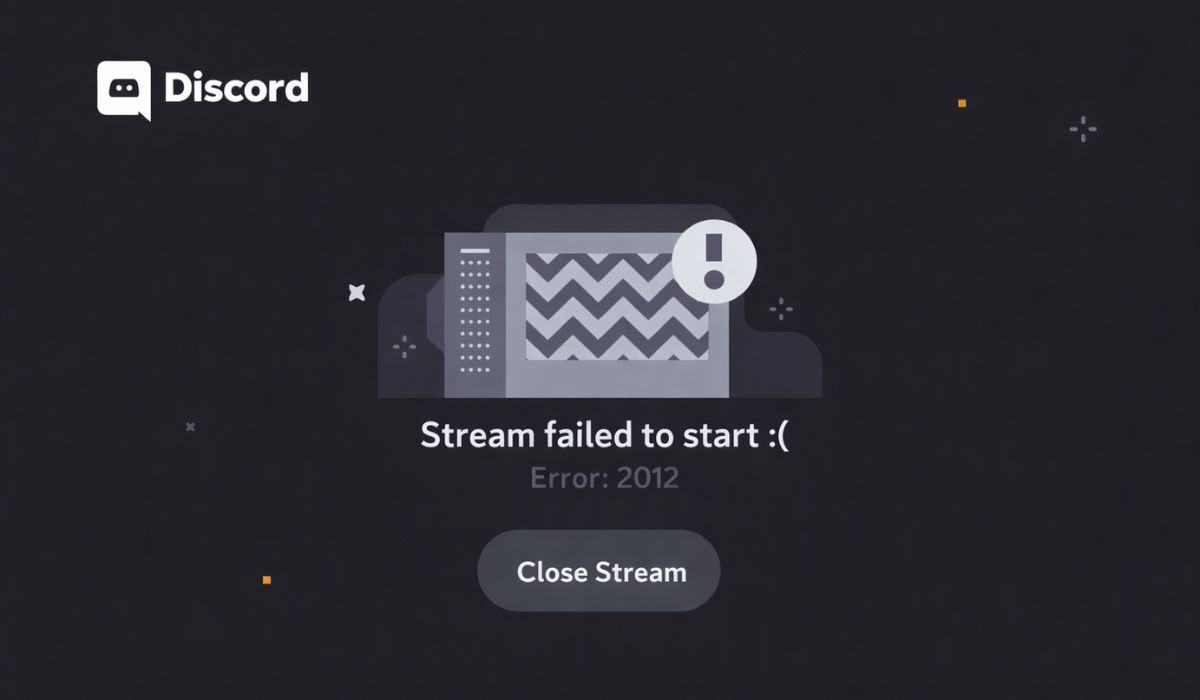
Discord error 2012 is a connection or authentication error. It means Discord cannot complete the login or connection process at that moment.
You may see this error on the desktop app, the web version, or even during startup before the app fully loads. It can show up as a blank screen, a retry message, or a small error notice. On Windows, macOS, or in a browser, the result is the same: Discord fails to connect, even though your account details are correct.
Common Causes of Discord Error 2012
This error can happen for several reasons, depending on your network, device, or account activity. Below are the most common causes users face.
- Temporary issues with Discord servers
- Unstable or slow internet connection
- VPN or proxy interfering with traffic
- Firewall blocking Discord network access
- DNS resolution problems
- Too many login attempts in a short time
- Corrupted browser cache or Discord app data
How to Fix Discord Error 2012?
In most cases, Discord error 2012 goes away once the connection issue is resolved. However, the fix depends on whether the problem comes from Discord servers, your network, or local app data. Try the fixes below in order and stop once Discord works again.
Fix #1: Check Discord Server Status
Sometimes the issue is not on your side. Discord servers may be down or under maintenance, which can trigger login errors.
Check Discord’s official status page or social channels and wait if there is an outage.
Fix #2: Restart Network and Router
Network glitches often cause connection errors. Restarting your router refreshes the connection and clears temporary issues.
Follow the steps below to reset your network.
- Close Discord completely
- Turn off your router
- Wait for at least 30 seconds
- Turn the router back on
- Wait until the internet reconnects
- Open Discord and try again
Fix #3: Disable VPN or Proxy Temporarily
VPNs and proxy services sometimes block Discord traffic or change your IP address too often. This can cause login failures and error 2012.
Try these steps to test without a VPN.
- Turn off the VPN or proxy
- Restart Discord
- Try logging in again
- If it works, change VPN settings or stop using it for Discord
Fix #4: Clear Discord App or Browser Cache
Corrupted cache files can stop Discord from loading properly. Clearing them forces the app or browser to rebuild fresh data and reconnect cleanly.
If you use the desktop app, clearing the AppData cache often helps.
If you use Discord in a browser, clearing browser cache and cookies related to Discord may fix the error.
Fix #5: Check Firewall and Security Settings
Firewalls and security tools can block Discord without warning. This prevents the app from connecting to Discord servers and causes error 2012.
Make sure Discord is allowed through your firewall and security software, then restart the app to test the connection again.
Fix #6: Log In Using a Different Platform
Sometimes the issue affects only one platform. Trying another login method helps confirm where the problem is.
You can test login using:
- Discord desktop app
- Web version in a browser
- A different device
If login works elsewhere, the issue is likely local to the original app or system.
Prevention Tips to Avoid Discord Error 2012 in the Future
Prevention helps reduce login failures and connection errors. Small habits can keep Discord stable.
- Avoid repeated fast login attempts
- Keep Discord updated
- Use a stable internet connection
- Avoid unreliable VPN services
- Use trusted DNS settings
- Log out properly before switching devices
- Check server status during connection issues
Conclusion
In summary, Discord error 2012 usually means the app cannot connect or verify your login due to network, cache, or server-related issues. VPNs, firewalls, and unstable internet connections are common triggers.
Try the fixes step by step and apply the prevention tips to avoid future problems. If the error still appears after all steps, contacting Discord support with details about your device and network is the best next step. If this article helped you, consider sharing it or leaving a comment about which fix worked for you.