


Low volume in Jellyfin is a common complaint. Dialogue sounds quiet. Music jumps out. You turn the TV up, then effects blast. This usually is not a Jellyfin bug. It’s a mix of audio formats, device limits, and how sound gets handled from server to player.
This guide explains why it happens and what you can do right now to fix it.
Short Answer: Why Jellyfin Audio Sounds Low?
Most low-volume issues come from surround sound playing on stereo speakers, or from client apps limiting gain. Jellyfin can also pass audio straight through without changing it. When the setup does not match the audio track, dialogue drops.
The fix depends on where the problem sits. Sometimes it’s the player. Sometimes it’s the server. Sometimes it’s the TV.
How Audio Playback Works in Jellyfin?
Jellyfin works as a media server. The server reads the file and sends audio to a client app. The client app then plays it on your device.
Two paths exist. Direct play sends the audio as-is. Transcoding converts it first. Direct play is cleaner, but it can expose issues when a 5.1 track hits stereo speakers. Transcoding can help, but only if settings are right.
Client apps matter here. A web player, a TV app, and a mobile app do not behave the same way.
Common Reasons Audio Is Too Quiet in Jellyfin
Several things can lower volume:
- Surround sound track on stereo output
- Dialogue locked to the center channel
- Player volume slider set low
- TV sound mode reducing speech
- Low-gain audio track in the file
- Codec mismatch like DTS on unsupported devices
Most users hit more than one of these at the same time.
Fix 1: Check Player Volume and Audio Track
Start with the basics. They matter more than you think.
In the Jellyfin player:
- Open playback controls
- Check the volume slider inside the player
- Switch to another audio track if available
Some files include both stereo and 5.1 tracks. The stereo track often sounds louder on TVs and laptops.
Fix 2: Adjust Surround Sound and Downmixing
Surround sound causes many low dialogue issues.
If your setup is stereo:
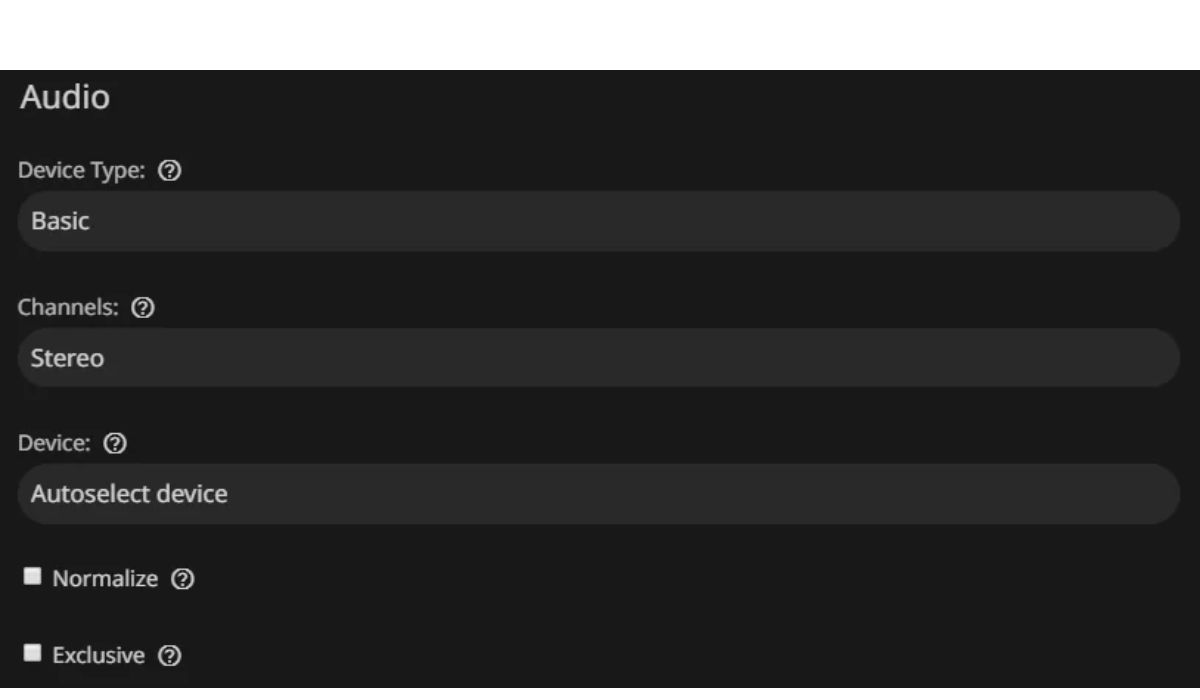
- Disable audio passthrough in the client app
- Force stereo output when possible
- Avoid 5.1 tracks if no center speaker exists
When dialogue sits in the center channel and the system drops it, voices fade. Downmixing fixes this by spreading sound across speakers.
Fix 3: Review Jellyfin Server Audio Settings
Server settings affect how audio gets sent.
In the Jellyfin dashboard:
- Check transcoding profiles
- Look for audio normalization options
- Avoid forcing passthrough unless needed
Audio normalization can raise quiet dialogue. Transcoding can also convert surround sound into cleaner stereo.
Fix 4: Check Device and TV Audio Settings
The device is often the cause, not Jellyfin.
Check these settings:
- TV sound mode like cinema or night mode
- Dynamic range compression
- Soundbar or receiver input mode
- HDMI audio output settings
- System-wide volume limits
Some TVs lower speech to protect speakers. Try a standard or music mode and test again.
Fix 5: When the Media File Is the Problem
Sometimes the file itself has weak audio. Old rips and poor mixes exist.
Signs include:
- Same file sounds quiet everywhere
- Dialogue stays low even after fixes
Re-encoding the audio can help, but I don’t know about the best settings for every format. Use this only as a last option.
Jellyfin vs Plex Audio Behavior
Users often compare Jellyfin with Plex. Plex sometimes boosts volume automatically in clients. Jellyfin avoids altering audio unless told to.
That difference makes Jellyfin feel quieter, but it keeps audio closer to the source. Once settings match your setup, the volume gap usually disappears.
Final Checklist to Fix Low Audio in Jellyfin
Before giving up, check this list:
- Player volume turned up
- Correct audio track selected
- Surround sound disabled if not needed
- Transcoding and normalization reviewed
- TV or device sound mode adjusted
Most users fix the issue by changing one or two items.
Final Thoughts
Low audio in Jellyfin is annoying, but it’s fixable. The cause is almost always a mismatch between audio format and playback setup. Once you line those up, dialogue becomes clear and steady.
If one of these fixes worked for you, share it in the comments. If you found a different fix, post that too. It helps others who hit the same problem.