


Many developers like Cursor because it feels fast and smart for writing code. It works well with Python files, JavaScript files, and plain text. Problems start when people open a Jupyter Notebook file with the .ipynb extension. Things feel off. Tab completion fails. AI help feels weaker. Sometimes the notebook does not even open.
This article exists to explain why that happens. It does not blame the user. It does not promise tricks that do not work. It explains what .ipynb files really are, why Cursor struggles with them, and what you can do instead. If you work with notebooks for data science, machine learning, or analysis, this guide is written for you.
What a .ipynb File Really Is?
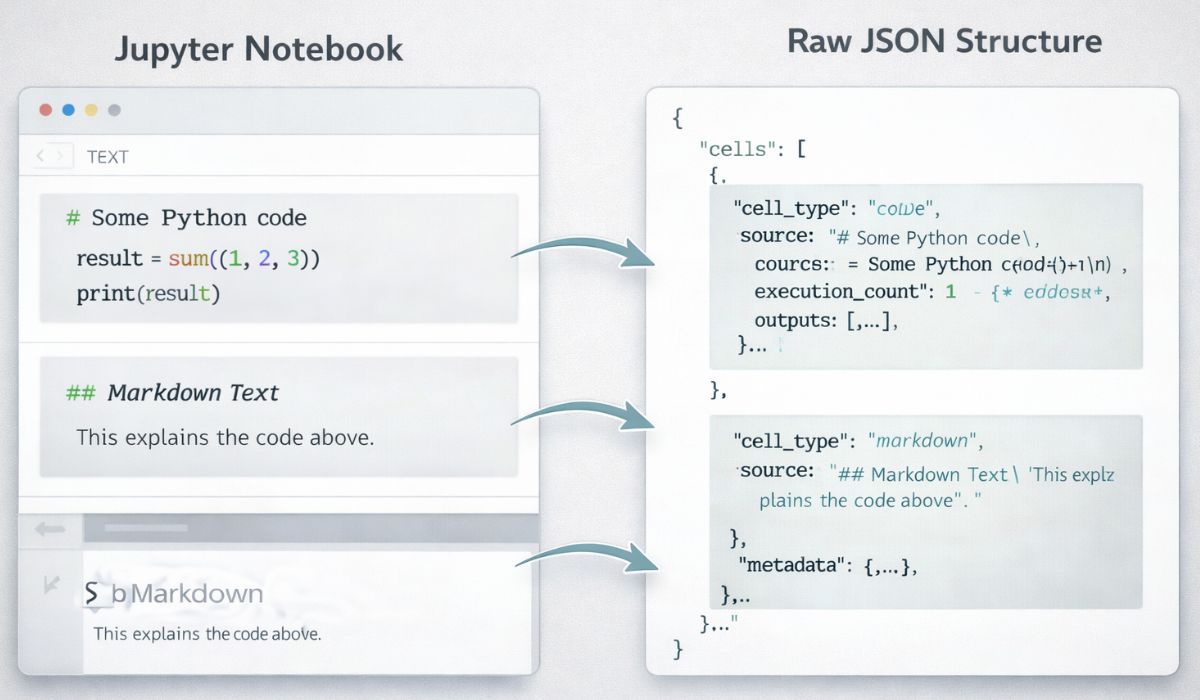
A .ipynb file is not a normal code file. It is a JSON document. Inside it, there are code cells, text cells, outputs, execution numbers, and metadata. All of that lives in one structured file.
Because of this structure, editing a notebook is not the same as editing a .py file. A notebook cell looks simple on screen, but under the hood it holds extra information. AI tools that work line by line with code often struggle with this format.
Cursor works best when it can read clean code text. With .ipynb files, it has to understand cells, outputs, and execution state at the same time. That extra layer creates friction.
What “Cursor Does Not Work Well” Actually Means?
When users say Cursor does not work well with .ipynb, they usually mean one or more of these things:
- Tab completion does not trigger inside notebook cells
- AI suggestions feel incomplete or incorrect
- Chat or agent features miss notebook context
- Notebooks open slowly or fail to load
- Cell execution feels unreliable
- Editing causes strange file changes
- Git diffs become messy and hard to review
These issues do not always appear at once. Some users see only one problem. Others see several. The common factor is the notebook format, not user skill.
Why Cursor Struggles More With Notebooks?
Cursor is built for source code editing. It shines with files where logic flows from top to bottom. Notebooks break that flow. Cells can run out of order. Outputs sit inside the file. Metadata changes even when you do not touch the code.
AI features depend on clean context. With .ipynb files, context becomes fragmented. One cell may depend on another that ran earlier. Cursor cannot always track that state. As a result, suggestions lose accuracy.
This does not mean Cursor is broken. It means notebooks push the editor outside its comfort zone.
Quick Checks That Sometimes Fix the Problem
Before changing tools, try these basic checks. They help in some cases, not all.
- Make sure the Jupyter or notebook extension is enabled
- Check that each cell is set to Python or Markdown
- Restart Cursor and reopen the notebook
- Confirm the correct Python kernel is selected
- Try a smaller notebook to test performance
If things improve, great. If not, the issue likely comes from how Cursor handles .ipynb files at a deeper level.
Workarounds That Actually Help in Real Projects
Many teams stop fighting notebooks and change the workflow instead.
One common approach is keeping logic in .py files and using notebooks only for outputs and experiments. Cursor handles the Python files well. Jupyter handles execution and display.
Another approach uses tools like Jupytext. This keeps a notebook synced with a Python script. You edit the script in Cursor. You run the notebook in Jupyter. Both stay in sync.
Some teams commit both files. The notebook shows results. The script shows clean logic. Reviews become easier. AI tools behave better.
This is not perfect. But it works.
Update Issues and Version Problems
Some users notice problems after updating Cursor. A notebook that worked before may stop opening. Features disappear. Errors show up without explanation.
When this happens, the safest steps are simple:
- Note the Cursor version
- Try reopening the file after restart
- If available, test an older version
- Report the issue with clear steps
Do not assume the problem is your code. Many notebook issues come from regressions.
When You Should Not Force Cursor for .ipynb?
Cursor is not always the right tool for notebooks. That is okay.
If your work depends on:
- Rich outputs and plots
- Widgets and interactive cells
- Stable execution order
- Notebook-first workflows
Then JupyterLab or VS Code notebooks will feel smoother. Cursor can still help with scripts, libraries, and refactoring. It does not need to do everything.
Conclusion
Cursor does not fail because you use it wrong. It struggles because .ipynb files are complex by design. They mix code, text, outputs, and state in one place. That makes AI editing harder.
The best approach is knowing when to use Cursor and when not to. Use it for clean code files. Use notebook tools for notebook tasks. If needed, connect both with simple workflows.
If you faced issues with Cursor and .ipynb, share your experience in the comments. Mention your setup and version. Others will benefit from real stories, not perfect claims.