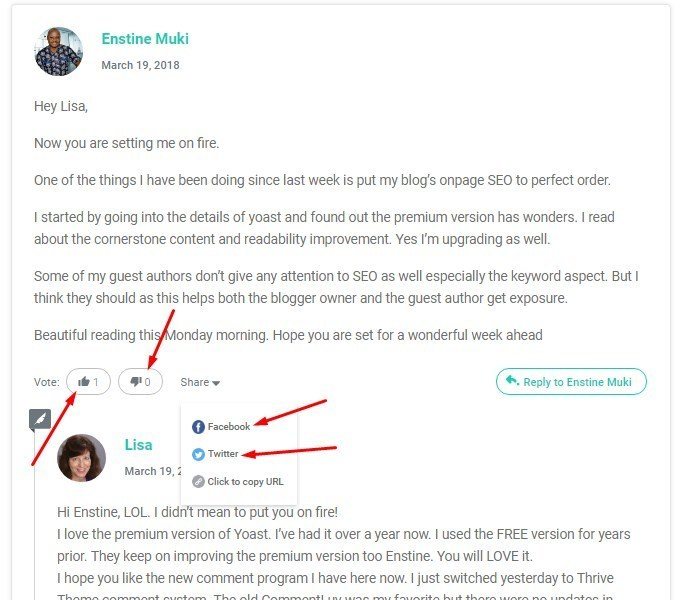
Use Gravatar if you want one avatar to follow your email across WordPress sites; use WordPress.com if you only care about your WordPress.com account and connected services. Gravatar stands for Globally Recognized Avatar, and it connects a profile image to your email address so supported sites can show it automatically [source: Gravatar]. That is the whole magic trick. One email. One face. Fewer mystery gray icons.
TLDR: Gravatar is best for a profile photo that appears on many WordPress sites, blogs, forums, and apps. WordPress.com is best for managing the profile tied to your WordPress.com account. For example, if Sara comments on 15 WordPress blogs using the same email, Gravatar can show the same avatar on all 15. If she only writes on one WordPress.com blog, the WordPress.com profile may be enough.
So, what is Gravatar?
Gravatar is a web profile photo service. It attaches your avatar to your email address. When you leave a comment on a WordPress site, the site checks your email. If that email has a Gravatar, your image appears.
Simple, right?
Here is the fun part. You do not upload your picture to every single blog. You upload it once to Gravatar. Then supported sites can pull it in.
Think of it like a tiny name tag for the internet. Except instead of saying “Hello, my name is Bob,” it says, “Yes, this is my face. Please stop showing me as a gray silhouette.”
What is WordPress.com in this avatar story?
WordPress.com is a hosted website platform and account system run by Automattic. It lets you make sites, write posts, follow blogs, comment, and manage account settings.
Your WordPress.com profile can include your name, bio, links, and avatar. That avatar may show when you are logged into WordPress.com, when you comment through your WordPress.com account, or when you use connected Automattic services.
Here is where people get annoyed. Honestly, it feels like one profile photo should not need two places to check. But it often does. Your WordPress.com account and your Gravatar profile are closely related, yet they are not the same tool in every situation.
Gravatar vs WordPress.com: the simple difference
Here is the clean version:
- Gravatar manages avatars by email address.
- WordPress.com manages your WordPress.com account profile.
- Self-hosted WordPress sites often use Gravatar for comment avatars and author images.
- WordPress.com sites may show your WordPress.com profile image when you are signed in.
If that sounds tiny, it is not. It affects where your face shows up.
When should you use Gravatar?
Use Gravatar when you want broad avatar coverage.
It is great for:
- Commenting on many WordPress blogs.
- Posting as a guest author.
- Running a self-hosted WordPress site.
- Keeping one profile image across several websites.
- Making your comments look more real and less spammy.
Many WordPress sites still pull avatars from Gravatar by default. WordPress itself powers a huge share of websites, with W3Techs reporting it on over 40% of all websites [source: W3Techs]. So yes, your Gravatar can matter more than expected.
If you write comments, publish posts, or build sites, Gravatar is the safer pick. It is boring in a good way. Set it once. Forget it for months.
When should you use WordPress.com?
Use WordPress.com when your main activity happens inside WordPress.com.
It is best for:
- Running a WordPress.com blog.
- Changing the profile tied to your WordPress.com account.
- Managing your public WordPress.com display name.
- Using services connected to your WordPress.com login.
- Following and commenting while signed in to WordPress.com.
If you are not sure which one matters, ask this: “Am I changing my email avatar, or my WordPress.com account photo?”
If the answer is email avatar, go to Gravatar. If the answer is WordPress.com account photo, go to WordPress.com.

Why does my WordPress avatar not update?
This is the part that drives people mildly wild.
You upload a new photo. You refresh the page. Same old face. Or worse, no face.
Common reasons include:
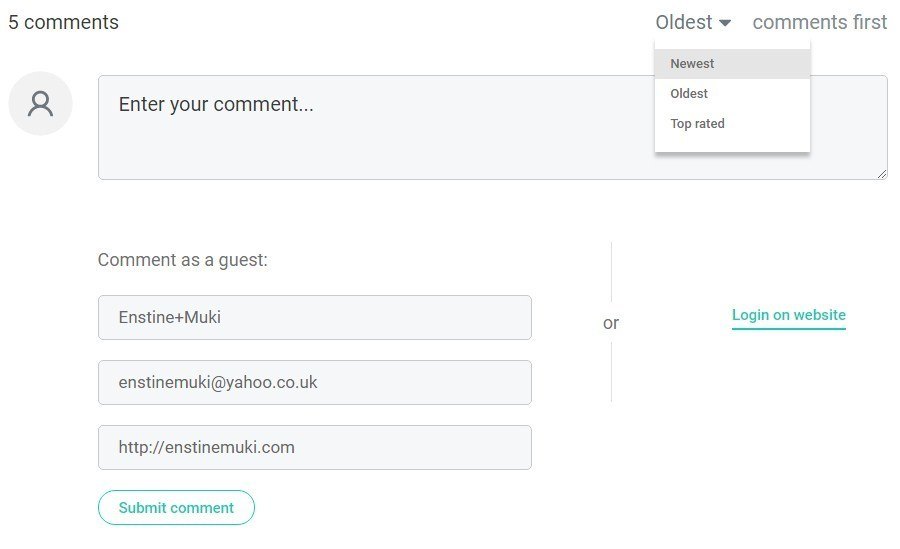
- You used the wrong email address. Gravatar matches by email. One typo can ruin the party.
- The site has caching. Your old avatar may stick around for minutes or hours.
- Your WordPress theme uses a custom avatar system. Some themes ignore Gravatar.
- A plugin is replacing avatars. Membership and community plugins often do this.
- You changed WordPress.com, not Gravatar. That may not update every outside site.
Expect to waste time on the email issue first. It is the sneaky one. If your WordPress account uses you@example.com but your Gravatar is linked to hello@example.com, your avatar will not match.
How to change your Gravatar
Changing a Gravatar is pretty simple.
- Go to Gravatar.com.
- Sign in with the account linked to your email.
- Add or choose an email address.
- Upload your avatar image.
- Assign that image to the correct email.
- Check a WordPress comment form using that email.
Use a square image if possible. A clear headshot works best. Logos can work too, especially for brand accounts.
Keep it clean. Tiny avatars do not forgive messy details. Your beach group photo may look like six pixels and regret.
How to change your WordPress.com profile avatar
For WordPress.com, the process is account based.
- Sign in to WordPress.com.
- Open your profile settings.
- Find your public profile or account photo section.
- Upload a new image.
- Save your changes.
After that, check where you expect it to appear. Try a comment, your profile page, and your site author box if you use one.
If nothing changes, wait a little. Caches can be stubborn. Also check if your site uses a plugin for local avatars.
Which one is better?
Gravatar is better for reach. It works across many sites that support it. It is tied to email, so it follows you around more easily.
WordPress.com is better for your WordPress.com identity. It is where your hosted account lives. It also controls more than just a photo, such as display name and profile details.
They are not enemies. They are more like two remotes for nearby devices. One controls the TV. One controls the soundbar. Both are useful. Both can make you grumble when the wrong one is in your hand.
Quick comparison
| Feature | Gravatar | WordPress.com |
|---|---|---|
| Main job | Email-based avatar | Account profile |
| Best for | Many WordPress sites | WordPress.com users |
| Uses email? | Yes | Uses account login |
| Good for comments? | Yes | Yes, mainly when signed in |
Practical user case
Let’s say Leo runs a small freelance writing business. He writes guest posts on 8 client blogs. He also comments on industry articles twice a week.
If Leo uses Gravatar, his headshot can appear across those sites when he uses the same email. That builds trust. People recognize him faster. No extra uploads. No awkward blank icon.
But if Leo only writes on his own WordPress.com blog, he can focus on his WordPress.com profile first. That is enough for many casual users.

Best setup for most people
The easiest plan is this:
- Set up Gravatar first with your main public email.
- Update WordPress.com next if you use that account.
- Use the same image in both places for consistency.
- Check your email addresses before blaming WordPress.
- Wait a bit if the image does not change right away.
For most WordPress users, that combo works best. Gravatar handles the wider web. WordPress.com handles your account identity.
Final answer: If you want your avatar to show up across many WordPress sites, use Gravatar. If you want to manage the profile connected to your WordPress.com account, use WordPress.com. If you use both, match the photo and email. Your future self will thank you.